Are you tired of drafting repetitive emails or missing timely reminders? Mozilla Thunderbird, the free open-source email client, makes it easy to automate replies and schedule messages. As long-time users and email productivity experts, we've relied on these features to streamline workflows across Windows, Mac, and Linux.
Note: These instructions are based on the Windows version of Thunderbird, but they apply to Mac and Linux with minor interface differences.
Autoresponder filters let you create rules for incoming emails that trigger a predefined template reply. Ideal uses include:
Here's how to set it up in Thunderbird.
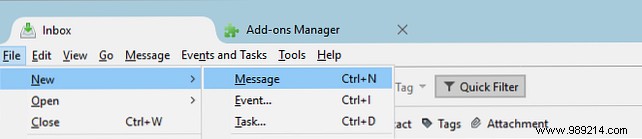
Start a new message via File > New > Message, the Write button, or Ctrl + N (Cmd + N on Mac).
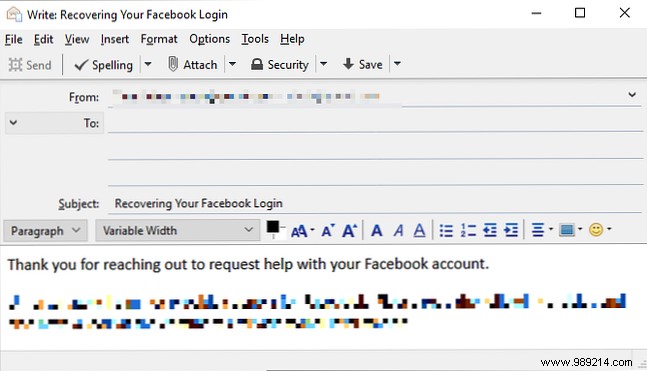
Compose your reply as usual, including a clear subject line.
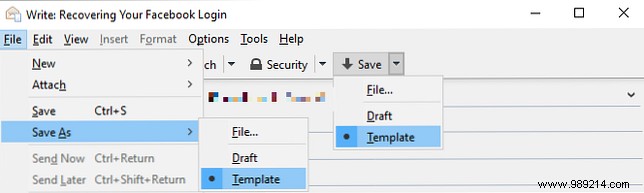
Save it as a template: File > Save As > Template or from the Save dropdown in the composition toolbar, select Template.
Create multiple templates as needed before setting up filters.
Tip: If menus or toolbars are missing, right-click an empty toolbar area and enable them.
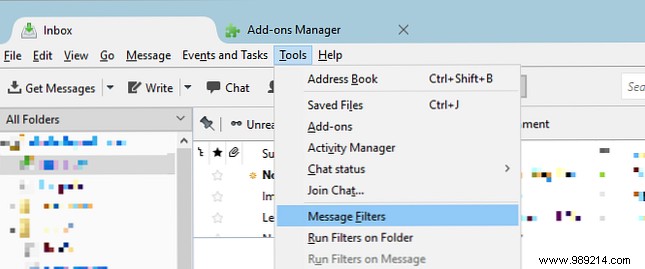
Go to Tools > Message Filters.
Click New to create a filter.
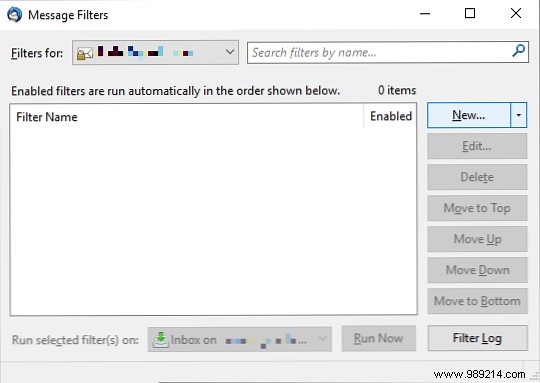
Note: For multiple accounts, select the correct one under Filters for.
Name your filter descriptively.
Under Apply filter when, choose Receiving new mail for all incoming emails or Run manually for selective control. Use After junk filtering if body matching issues arise.
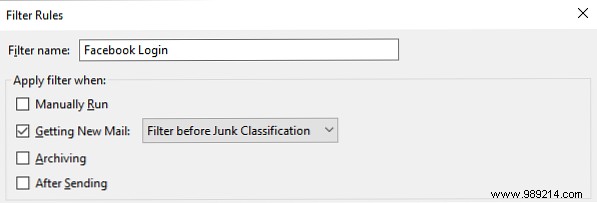
Note: Other triggers like archiving or after sending are great for organization but less relevant here.
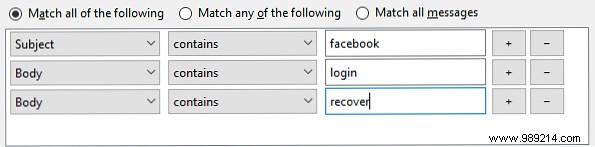
Set rules: Match all or any criteria like subject or body. Add (+) or remove (-) rules as needed. Use Match all messages for bulk actions.
For the action, select Reply with template and pick your template. Add extras like moving to a folder.
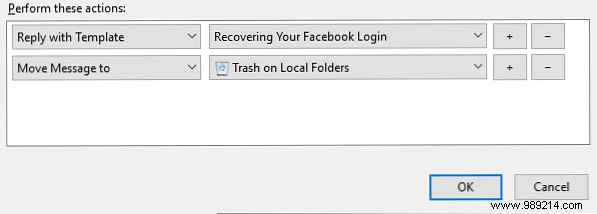
Click OK to save.
Tip: Chain multiple filters—e.g., sort first, then auto-reply manually on specific folders.
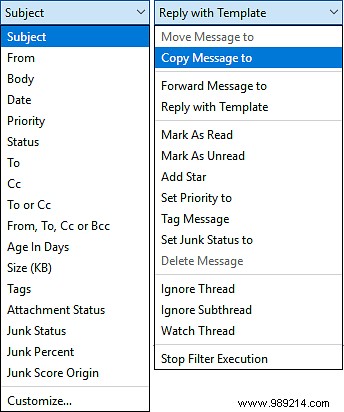
Thunderbird doesn't have built-in scheduling, but the free Send Later add-on—similar to Boomerang for Gmail—handles it reliably for reminders to yourself, friends, or teams.
Open the menu (three lines), select Add-ons and Themes, switch to Extensions, and search Send Later. Click Add to Thunderbird.
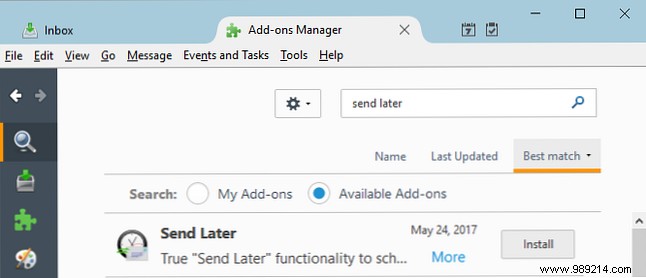
Restart when prompted.

Configure via Add-ons > Extensions > Send Later Options: Set general prefs, shortcuts, and advanced settings.
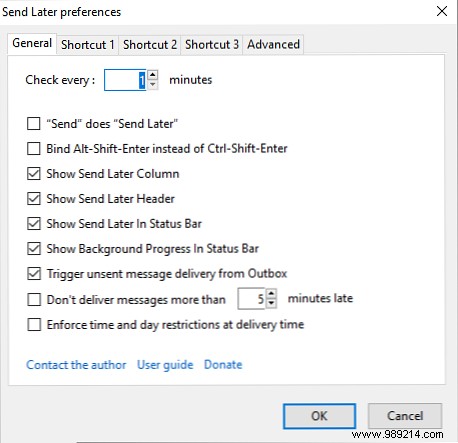
Tip: Enable "Send" becomes "Send Later" to avoid accidental sends.
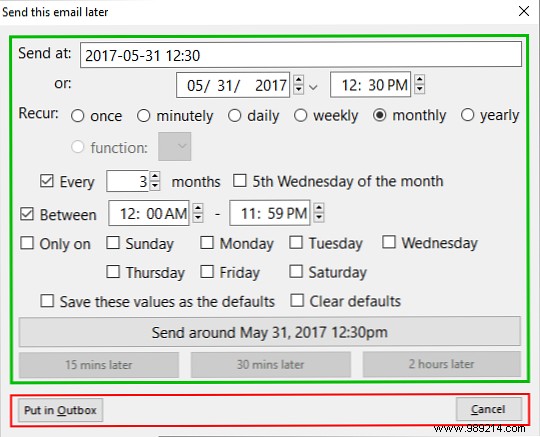
In a new message, go File > Send Later or press Ctrl + Shift + Enter.
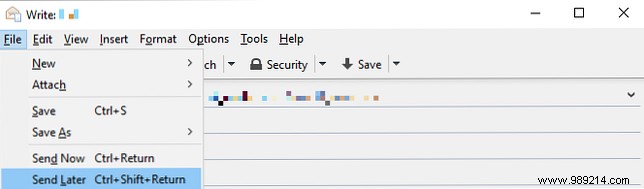
Set the send date/time, repeat options if needed, and confirm.
These tools, powered by Thunderbird's vast add-on ecosystem, keep your email organized and efficient. Thunderbird excels where web clients fall short.
How do you use filters and add-ons in Thunderbird? Share your tips and favorites in the comments!
Originally written by Jeffry Thurana on January 19, 2011.
