Excel formulas often reference data in other cells using addresses like A1 or B2. In complex workbooks with many formulas, these references can become confusing and hard to follow.
The Defined Names feature in Excel simplifies this by letting you assign descriptive names to cells, ranges, values, or formulas. Instead of cryptic cell addresses, you can use meaningful names like "SalesTotal" or "QuarterlyGrowth," making your spreadsheets clearer and more professional.
In this expert guide, we'll cover everything you need to know about named ranges: creating them, understanding naming rules and scopes, editing, deleting, viewing, and using them in formulas and navigation.
Don't confuse defined names with table names. Excel tables organize data into rows (records) and columns (fields), with default names like Table1 that you can customize.
For more on Excel tables, check out our guides like 8 Tips to Learn Excel Fast for beginners or How to Use an Excel Pivot Table for Data Analysis. See also Microsoft's support page on creating tables.
Defined names must follow specific rules: no spaces, start with a letter, underscore (_), or backslash (\), and avoid certain characters.
For the full list, visit Microsoft's naming syntax rules.
Scope determines where a name is recognized: local (worksheet-level) or global (workbook-level). Worksheet-scoped names require the sheet name for reference elsewhere.
Learn more in Microsoft's guide on name scope.
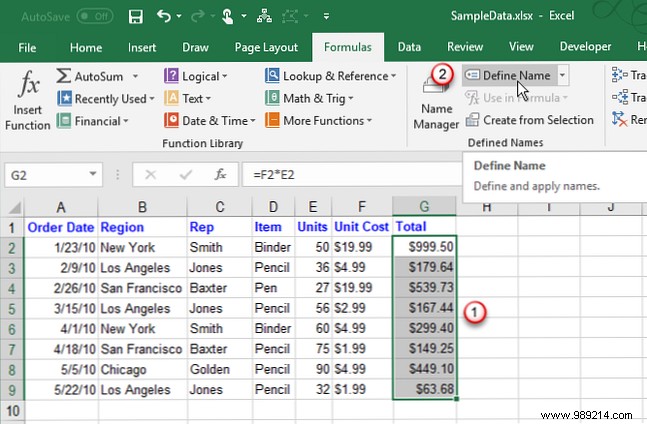
Create named ranges via the Name box, header text, or New Name dialog. Names can reference cells/ranges (using absolute references by default) or fixed values/formulas.
This method creates workbook-scoped names, usable anywhere in the file.
Follow naming rules.
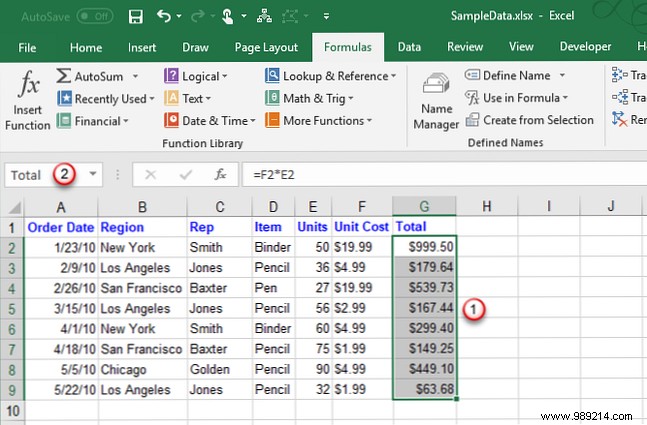
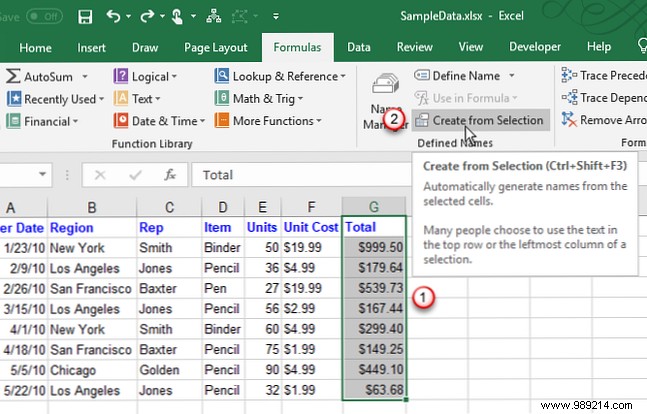
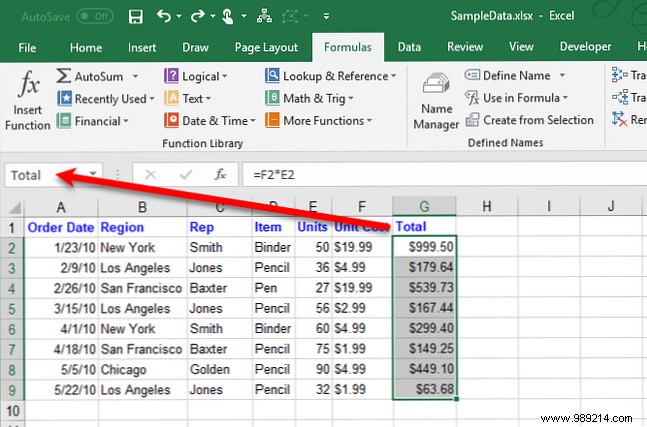
Use row/column headers as names.
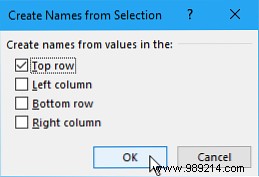
Invalid characters (spaces, &) become underscores. In the dialog, check Top row, Left column, etc., then OK.
Offers scope, comments, and formula support.
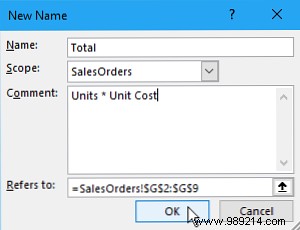
Minimize via the Refers to button to select ranges dynamically. For worksheet tabs, see our guide How to Work with Worksheet Tabs in Excel.
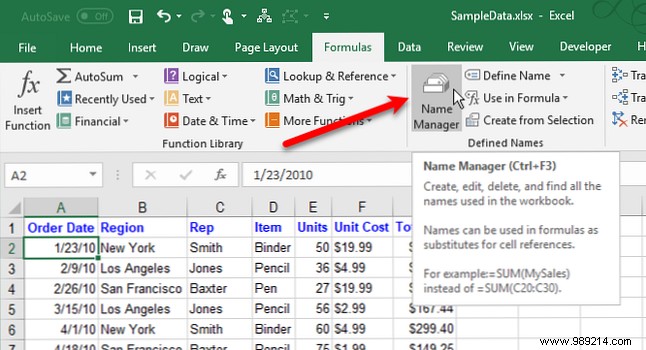
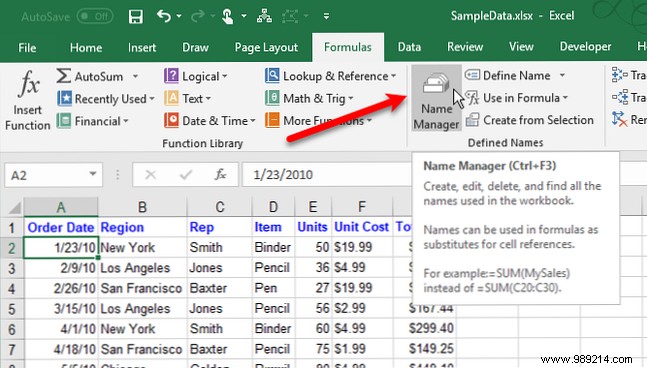
Change names, comments, or references via Name Manager (Formulas tab).
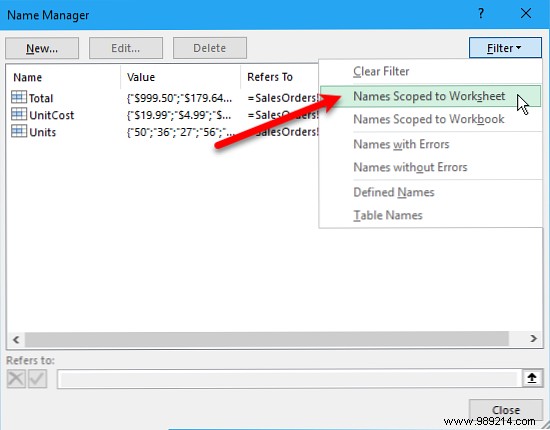
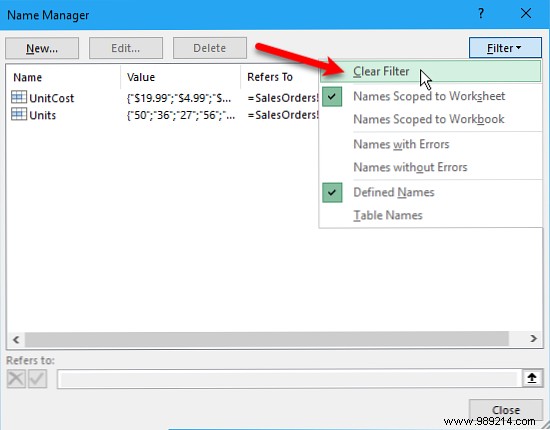
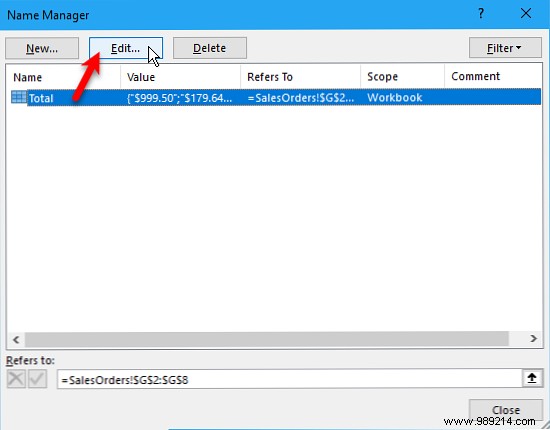
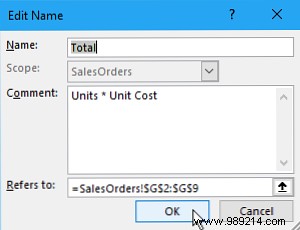
Filter names if needed, select, and Edit for name/comment changes. Scope can't be edited—delete and recreate.
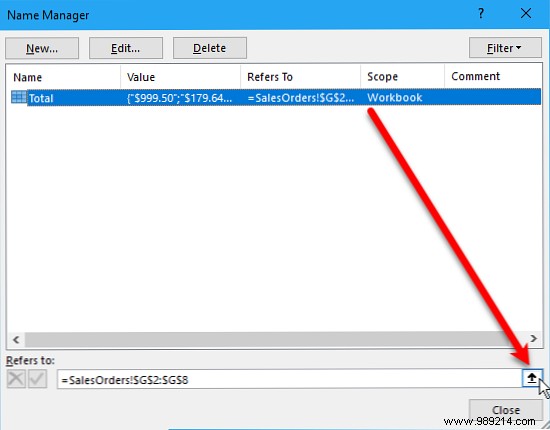
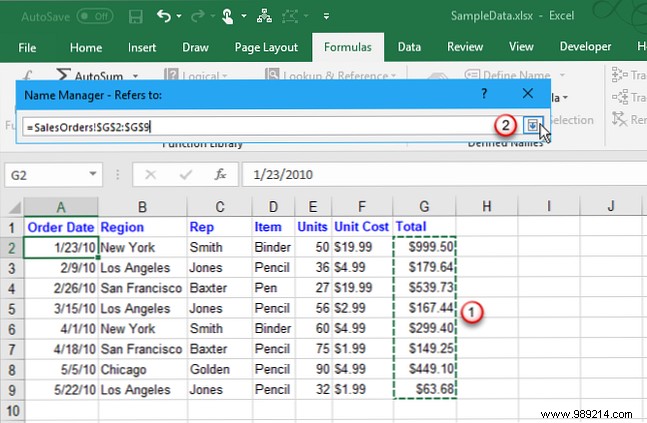
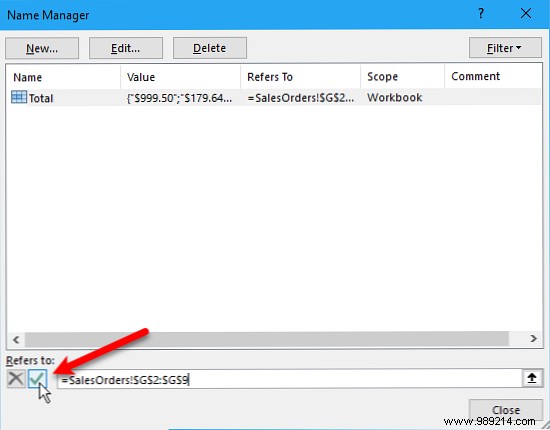
For references: Select name, shrink Refers to box, select new range, confirm with checkmark.
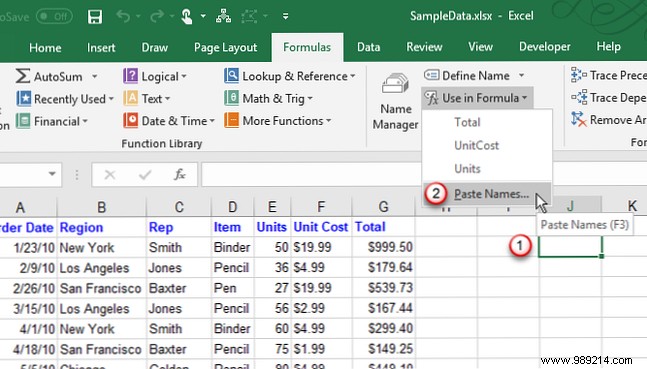
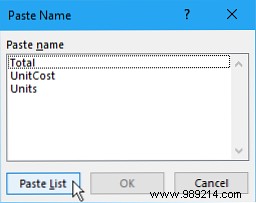
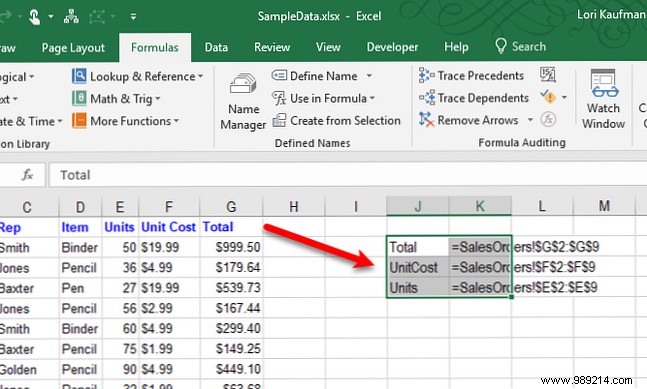
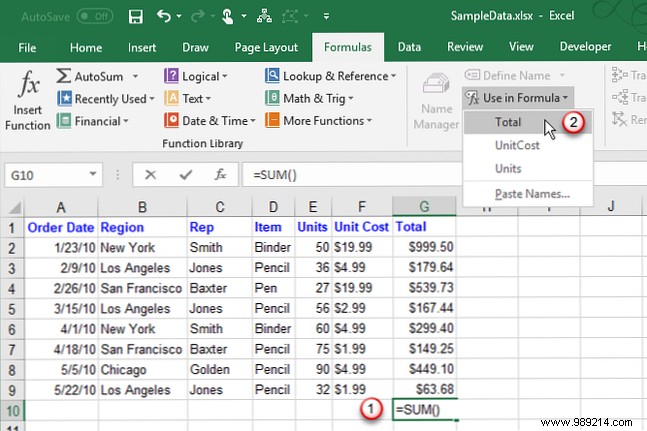
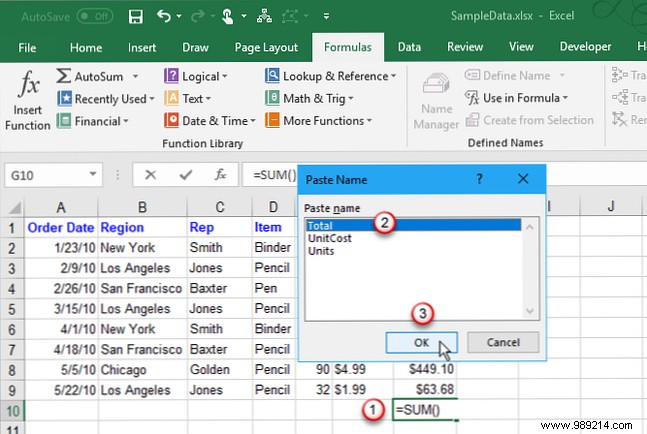
Name Manager lists all, but for worksheet integration: Select top-left cell, Formulas > Use in Formula > Paste Names (F3), then Paste List.
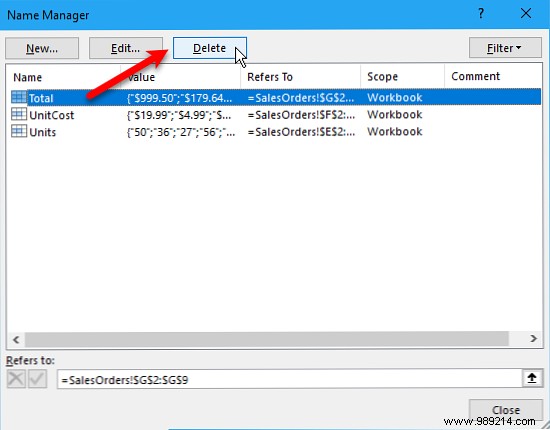
Clean up unused names in Name Manager: Select > Delete > OK.
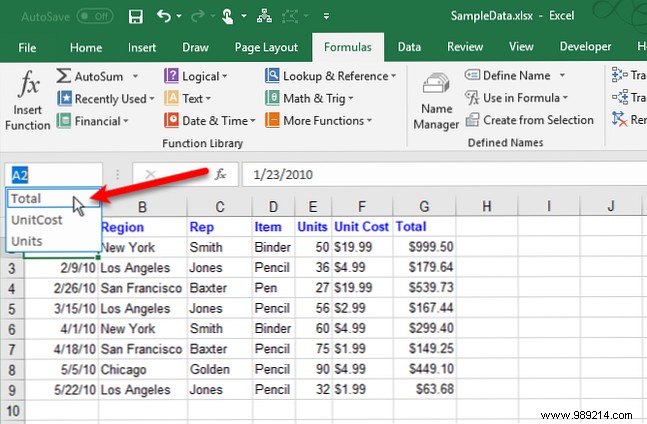
Jump to ranges via Name Box dropdown or type name + Enter (ensure it exists).
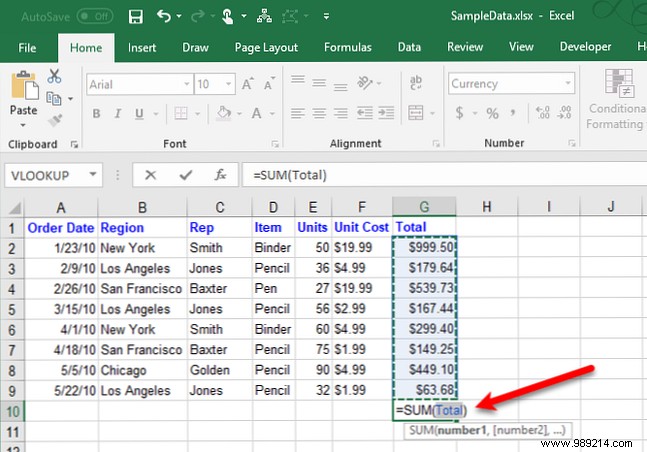
Descriptive names make formulas readable. Insert via typing, AutoComplete, Use in Formula dropdown, or F3.
Named ranges organize complex sheets, ideal for repeated values or formulas. Start with our Beginner's Guide to Microsoft Excel for fundamentals.
