Preparing for a marathon demands months of consistent training. Excel is an excellent tool for tracking your runs, monitoring progress, and visualizing improvements with dynamic charts and checklists.
This guide, based on years of experience helping runners optimize their training, walks you through creating a customizable spreadsheet. We'll add checkboxes for completed workouts, a race-day countdown, auto-updating charts, and performance benchmarks.
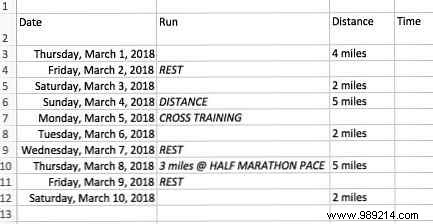
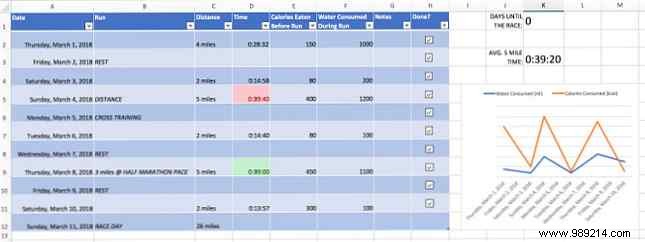
Open Excel and create a new workbook. Add these essential column headers: Date, Run, Distance, Time, and Done?. Optional columns like pre-run nutrition or water intake can enhance tracking.

Populate the Date, Run, and Distance columns from your marathon training plan (plenty of free plans online aim for 26.2 miles). Customize as needed for your goals.
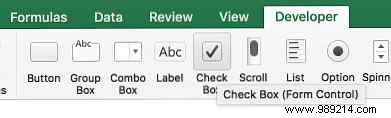
Checkboxes provide a satisfying way to mark completed runs. Enable the Developer tab (File > Options > Customize Ribbon), then insert a checkbox from the Controls group.
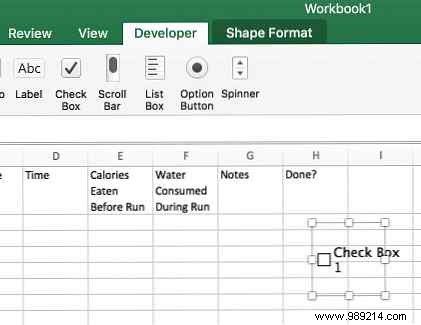
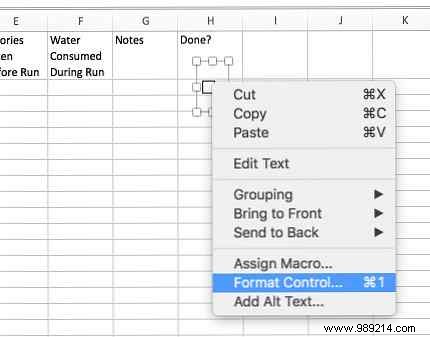
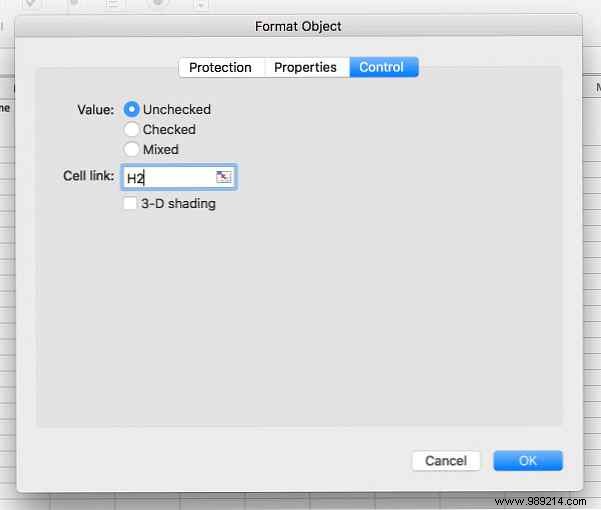
Place it in the Done? column, delete the default text, right-click, and select Format Control. Link it to the cell behind (e.g., H2). Checking it displays TRUE.
Hide TRUE/FALSE by setting font color to white. Use Format Painter or Ctrl+Y to replicate. Double-space rows for easier clicking if desired.
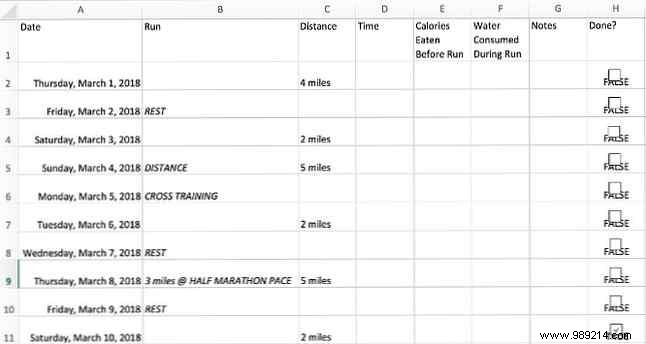
Add a race-day row for reference. In a spare cell, enter:
=COUNTIF(H2:H11, FALSE)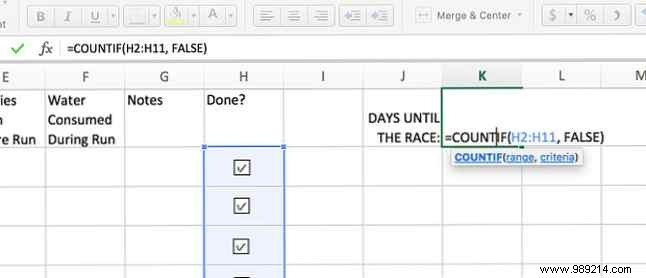
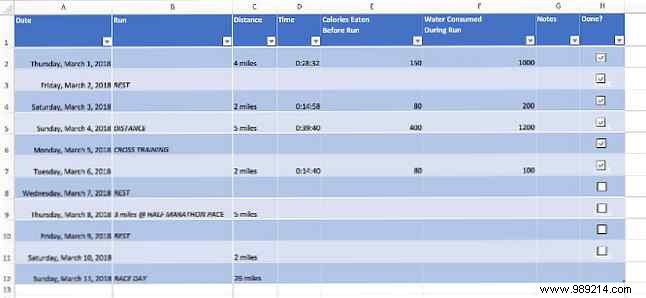
Enter times in hh:mm:ss format (e.g., 00:28:32 for 28 minutes, 32 seconds). Select your data range and press Ctrl+T to create a table. Adjust hidden cell colors if needed.
Select Date and Distance columns, go to Insert > Charts > Line chart.
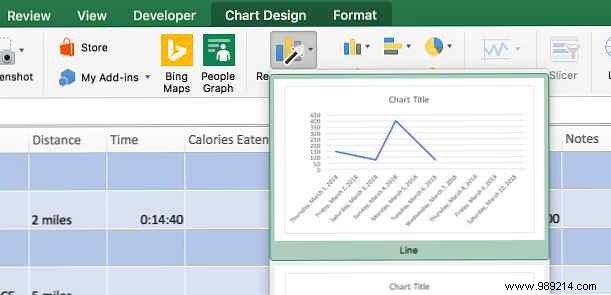
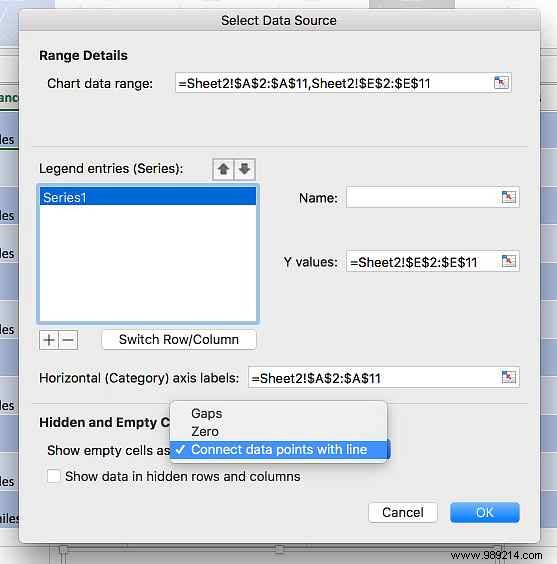
In Chart Design > Select Data, edit to connect data points with lines. Add a second series for metrics like water intake: set horizontal axis to Dates and Y-values to the target column.

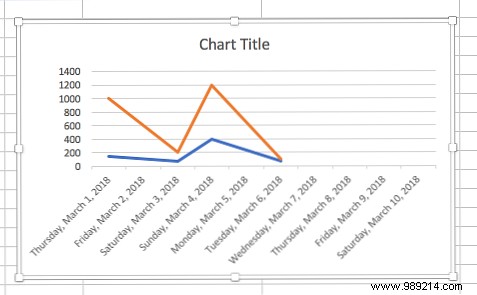
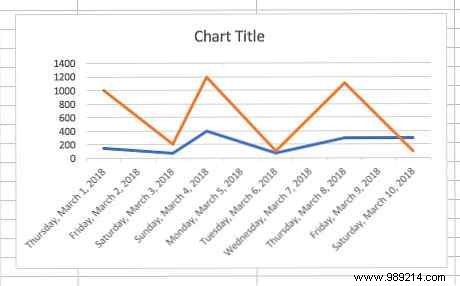
Charts auto-update as you log data.
For 5-mile runs, calculate average time in a spare cell:
=AVERAGEIF(C2:C11, "5 miles", D2:D11)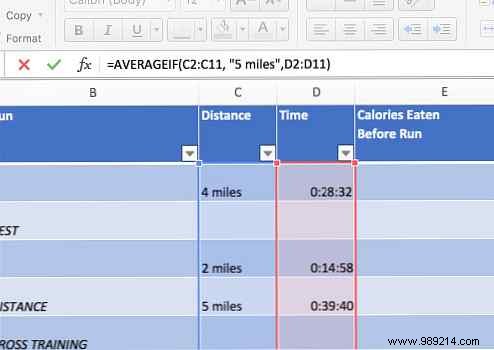
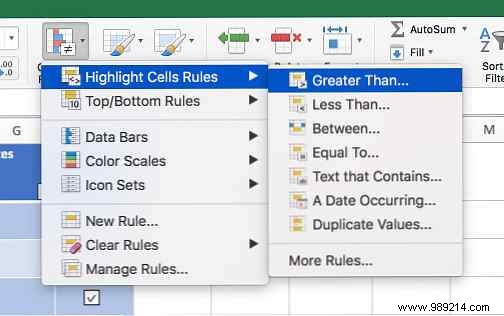
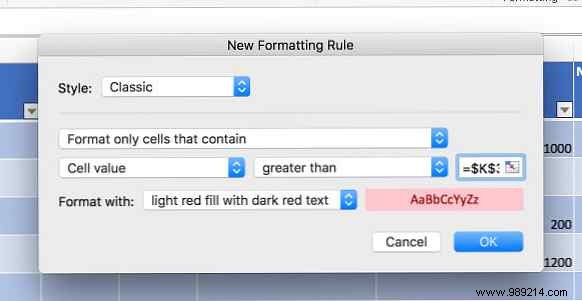
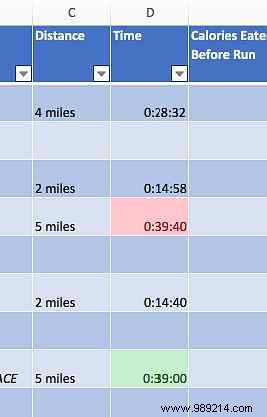
Select Time cells for 5-mile runs. Home > Conditional Formatting > Highlight Cells Rules > Greater Than (reference average cell) for one color; Less Than for another (faster times).
This foundation is flexible—add heart rate, calories, or dashboard elements. My spartan version prioritizes clarity.
Share your Excel marathon tracking tips or questions below!
