Setting a print area in Microsoft Excel ensures you only print the essential data, saving paper and highlighting key insights without unnecessary rows or columns. As Excel experts with years of experience optimizing spreadsheets for professionals, we've streamlined this process for you.
Excel printing doesn't have to be daunting. Follow these proven steps to master it.
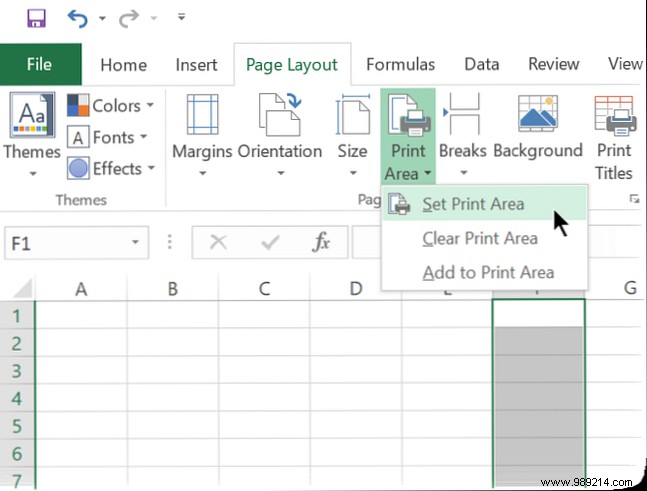
To print multiple areas: Hold Ctrl and select each range. Each area prints on its own page.
You don't need to print immediately—print areas are saved with the workbook.
If you make a mistake, clearing is simple and removes all print areas at once.
Missed some adjacent cells? Add them easily. Non-adjacent cells create a new print area on a separate page.
Print areas go beyond saving toner—they make your data clearer and more professional.
