As seasoned Microsoft Word experts, we've streamlined workflows for countless users. Documents often require special characters and symbols that standard keyboards can't accommodate.
Word offers quick solutions like Alt key combinations with ASCII codes (for the first 128 characters) or the Symbols dialog via the Insert menu. But for symbols you use frequently, create a custom one-click button on the Quick Access Toolbar—it's simpler than you think, using Word's built-in macro recorder. No advanced coding required.
Add it to Quick Access Toolbar How to Customize MS Office 2010 Quick Access Toolbar Quick Access Toolbar is a part of MS Office since version 2003, but has come to the forefront since the introduction of MS Office 2007 and more prominently with MS Office... Read More
Begin in the Developer tab on the ribbon. If it's not visible:
Go to File > Options > Customize Ribbon. In the main tabs list, check Developer to display it on the ribbon. Click OK. Then, navigate to Ribbon > Developer tab > Code group > Macros.
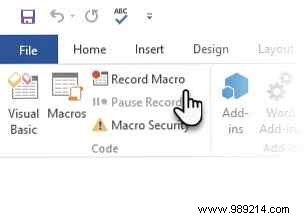
On the Developer tab, in the Code group, click Record Macro.
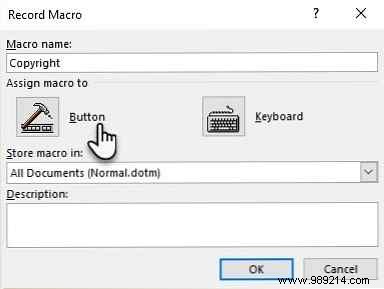
Enter a descriptive name for your symbol shortcut (e.g., "InsertCopyright" for the © symbol). Select Button to add a one-click icon to the Quick Access Toolbar. Store the macro in the Normal template (normal.dot).
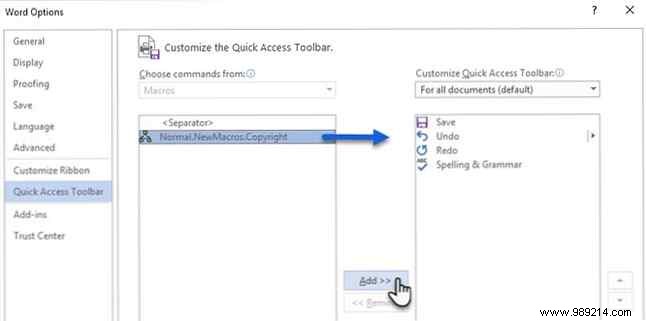
The Quick Access Toolbar customization panel opens. Select your new macro and click Add > to include it.
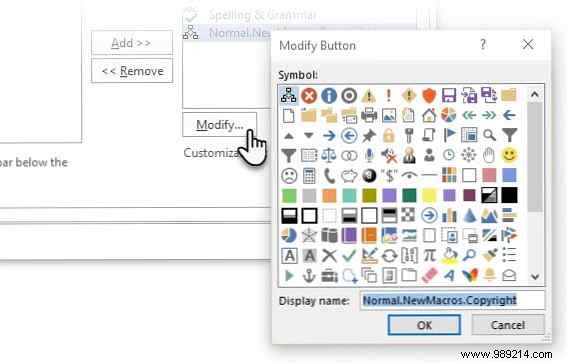
Customize the button: Select the macro name, click Modify, and choose an icon representing your symbol from the dialog. Click OK, then close the customization panel to return to your document.
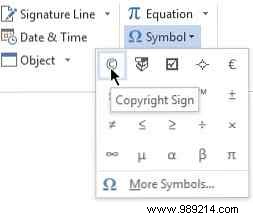
Now record the action: From the ribbon, go to Insert > Symbol and select your desired symbol.
Return to the Developer tab and click Stop Recording.
Your custom button is ready on the Quick Access Toolbar. Click it anytime to insert the symbol instantly, saving you time on repetitive tasks.
What's your go-to special character in Word? Will this tip boost your productivity?
