Microsoft Excel is the go-to tool for handling numbers, from student spreadsheets to accountant ledgers. But its power shines with text too. These functions help parse, edit, convert, and transform text strings, eliminating hours of manual drudgery.
This expert guide, based on years of real-world use, draws from Microsoft documentation and practical applications. Download the free PDF: Save Time with Text Operations in Excel. Share it with your team.
Navigation: Non-destructive editing | Half-width and full-width characters | Character functions | Text analysis functions | Text conversion functions | Text editing functions | Text replacement functions | Text extraction functions | Real-world example
Excel's text functions follow a key principle: non-destructive editing. Original text stays intact in its cell; results appear in new cells. This safeguards your data, especially in large sheets where mistakes could be costly.
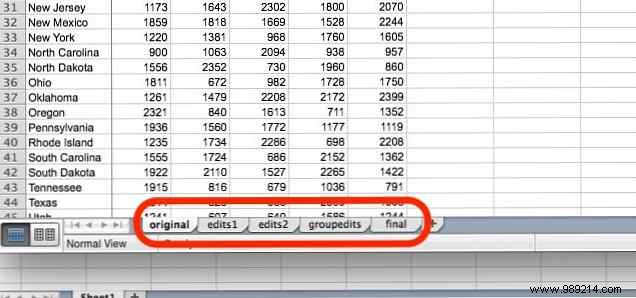
Pro tip: Keep the original data on Sheet1 and edited versions on subsequent sheets for easy reference and recovery.
In languages like Chinese, Japanese, and Korean, characters come in half-width (single-byte) or full-width (double-byte) forms. Full-width are wider and more readable; half-width save space.
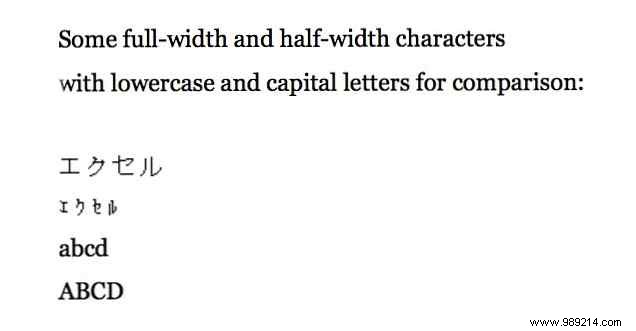
Most users won't need this, but functions below handle both seamlessly for global data work.
Occasionally, you'll manipulate individual characters. These reliable functions handle it precisely.
CHAR converts a number to its corresponding character based on your system's codepage. Syntax:
=CHAR(number)Use =CHAR(B7) or =CHAR(84). Results vary by OS (e.g., Windows vs. Mac).
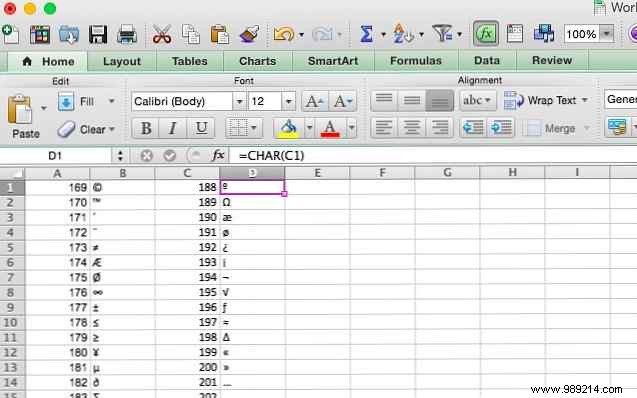
For Unicode (Excel 2013+):
=UNICHAR(unicode_number)
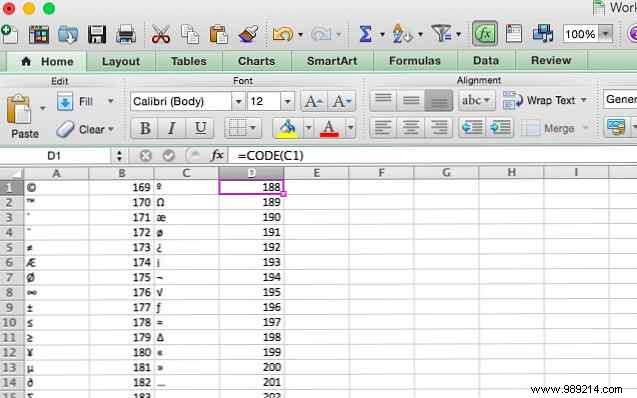
The reverse: Extract code from a character (first in string only). Syntax:
=CODE(text)or
=UNICODE(text)(Excel 2013+).
Get insights into your text data with these essentials.
Counts characters in a string, including spaces. Syntax:
=LEN(text)
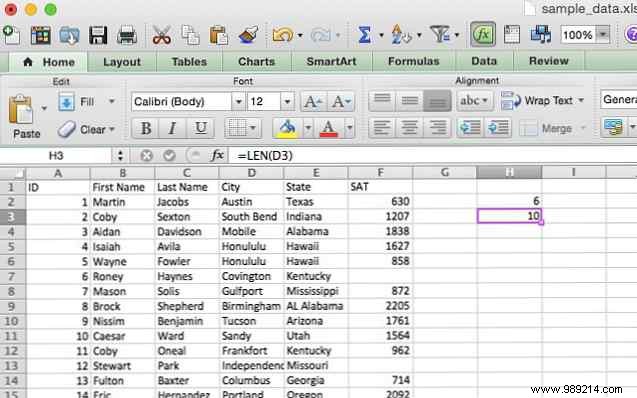
LENB works with double-byte sets.
Locates text position (case-sensitive). Syntax:
=FIND(find_text, within_text, [start_num])
Example: Spot "HP" in student IDs:
=FIND("HP", A2, 3)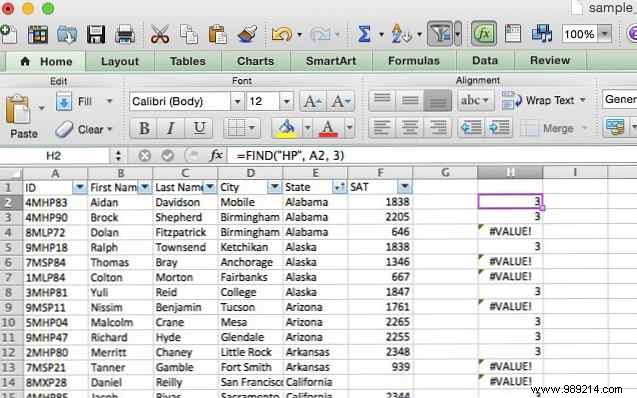
Use SEARCH for case-insensitive. FINDB for double-byte.
Compares strings exactly (case-sensitive). Syntax:
=EXACT(text1, text2)
Example: Flag score discrepancies:
=EXACT(G2, F2)
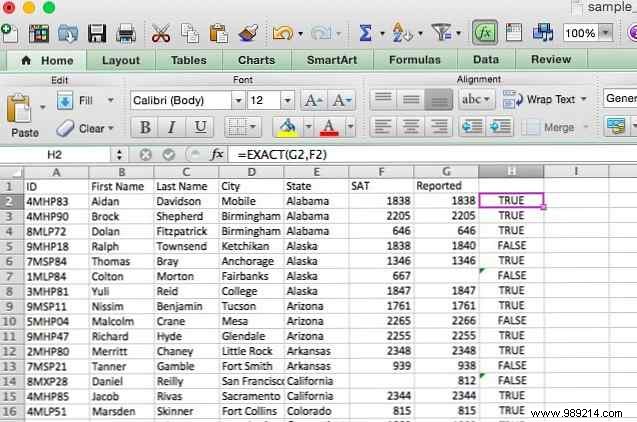
Transform formats effortlessly.
Formats numbers as text. Syntax:
=TEXT(value, format_text)E.g., currency:
=TEXT(G2, "$#,###")
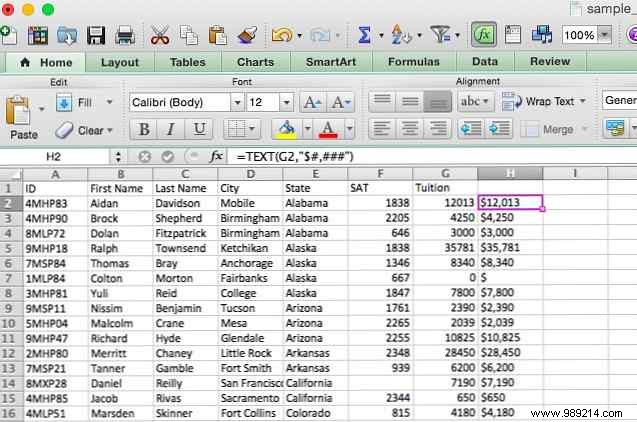
Check Microsoft help for advanced formats.
Formats numbers as text with rounding. Syntax:
=FIXED(number, [decimals], [no_commas])Round to thousands:
=FIXED(G2, -3)
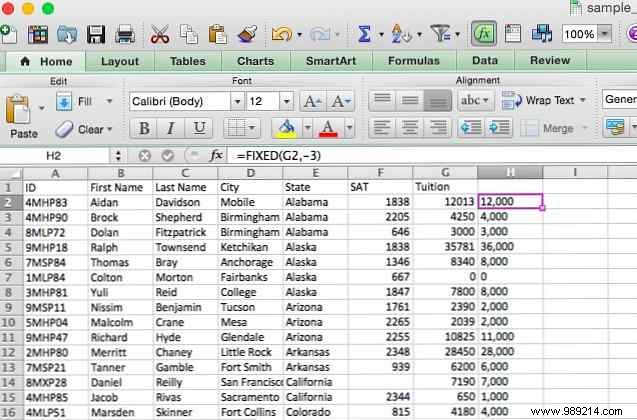
Converts text to numbers. Syntax:
=VALUE(text)Ideal for imported data.
Formats as currency text. Syntax:
=DOLLAR(number, [decimals])
ASC: Full- to half-width.
=ASC(text)JIS: Half- to full-width.
=JIS(text)
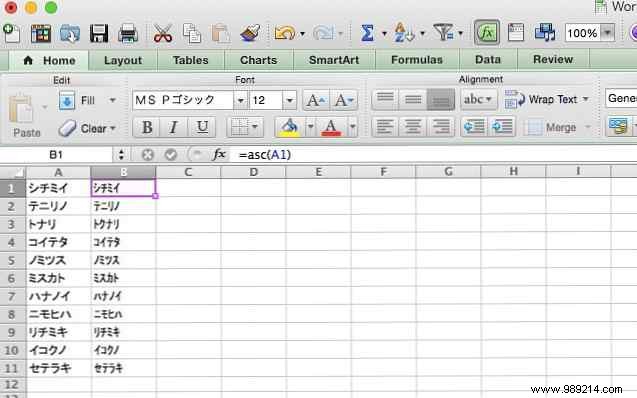
Refine text programmatically.
Case changes:
=UPPER(text),
=LOWER(text),
=PROPER(text)
Removes non-printable characters.
=CLEAN(text)
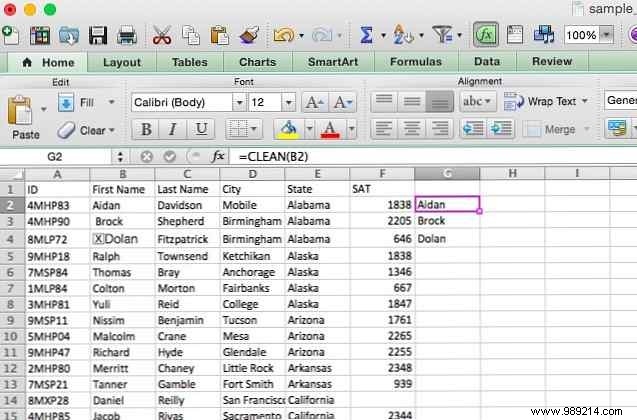
Removes extra spaces.
=TRIM(text)
Update strings quickly.
Replaces specific text. Syntax:
=SUBSTITUTE(text, old_text, new_text, [instance_num])
Example: Fix "Honululu" to "Honolulu":
=SUBSTITUTE(D28, "Honululu", "Honolulu")
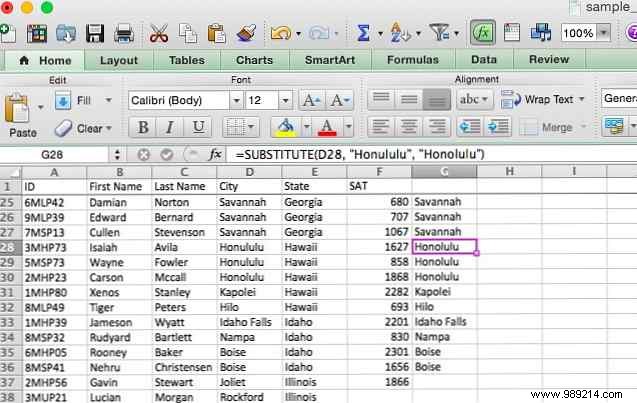
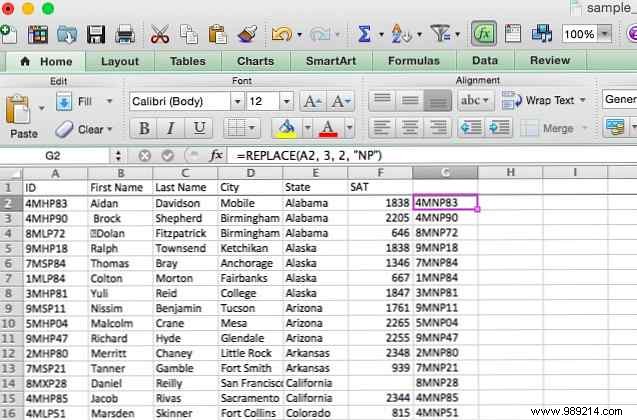
Replaces by position. Syntax:
=REPLACE(old_text, start_num, num_chars, new_text)
Example: Swap achievement codes:
=REPLACE(A2, 3, 2, "NP")
Build or slice strings precisely.
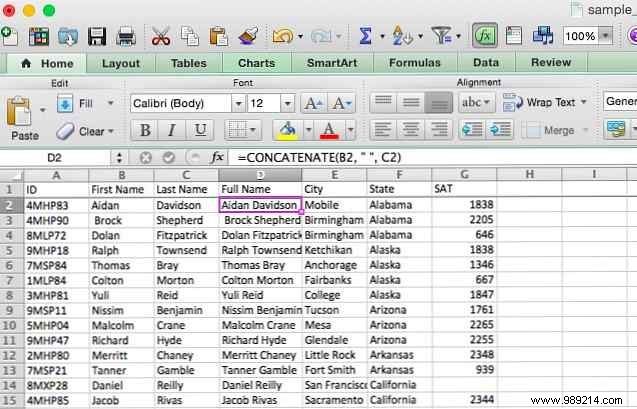
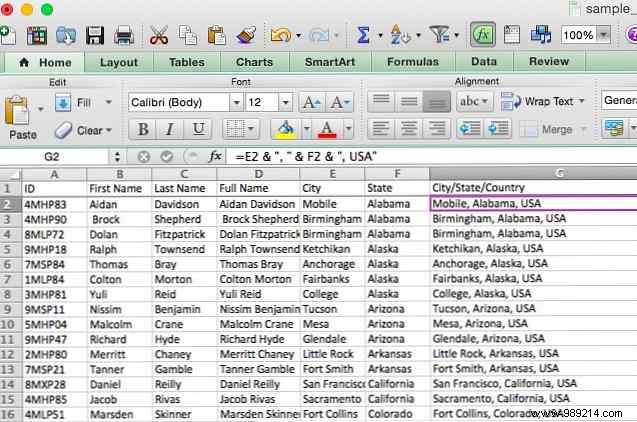
Joins text. Syntax:
=CONCATENATE(text1, text2, ...)Or use &:
=A2 & " " & B2
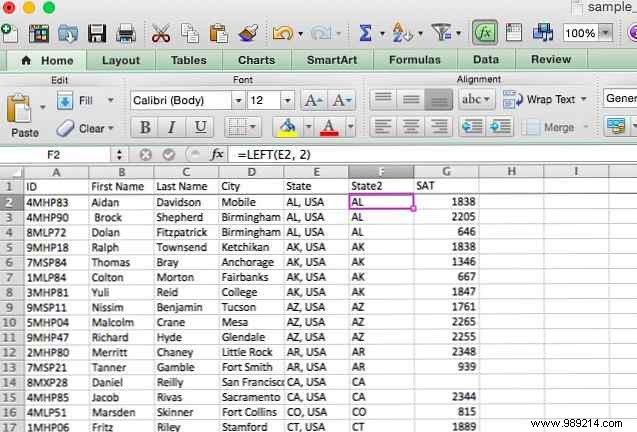
Extract from start/end. Syntax:
=LEFT(text, num_chars)/
=RIGHT(text, num_chars)
Extract from middle. Syntax:
=MID(text, start_num, num_chars)
Example: Remove titles:
=MID(A2, 5, 15)
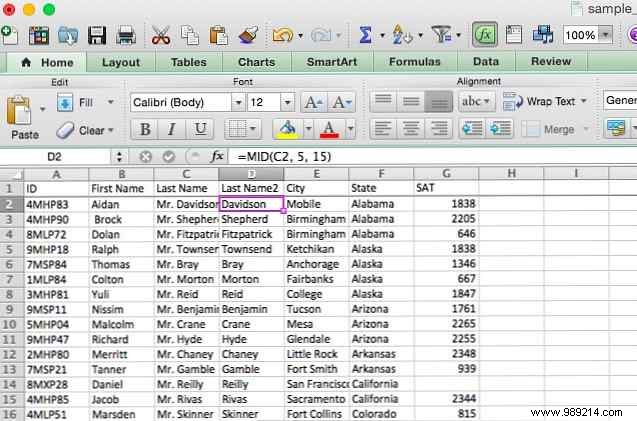
Combine with IF for smarts:
=IF(LEFT(A2,3)="Mrs.", MID(A2,6,16), MID(A2,5,15))
Repeats text. Syntax:
=REPT(text, number)
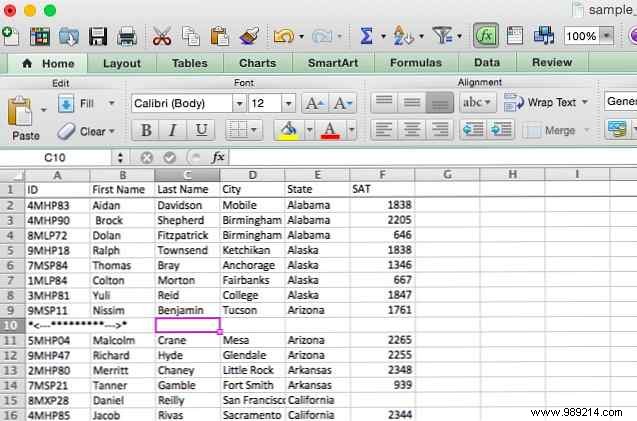
In my psychology grad research, participants clicked A or B buttons (left: negative x-coords, right: positive). I used MID + IF to score 100 trials automatically:
=IF(D3="optiona", IF(MID(F3,2,1)="-", 1,0), IF(MID(F3,2,1)="-", 0,1))
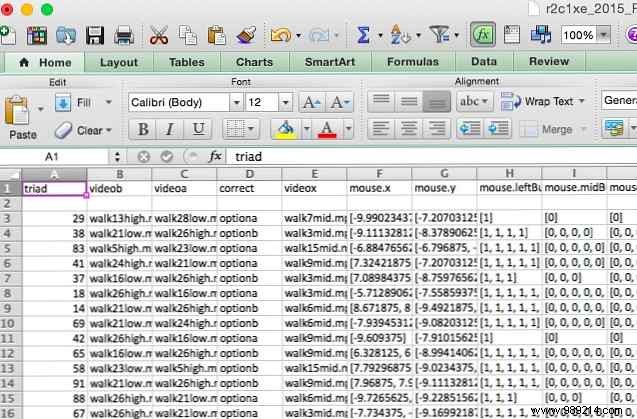
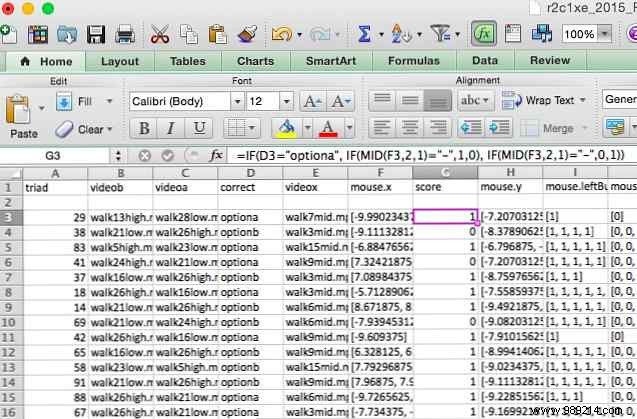
This scored hits (1) vs. misses (0), enabling quick summaries.
Excel's text tools rival its numeric prowess. Combine them for complex tasks—from data cleaning to automation. Practice these, and you'll boost productivity across projects.
How have you used Excel text functions? Share your toughest transformation in the comments!
