Microsoft Word combines user-friendly templates, styles, and themes with deep customization options, making it perfect for beginners and enterprise professionals alike. Drawing from years of hands-on experience optimizing documents for clients, I'll show you how to tailor layouts in Word 2013 and 2016 for maximum efficiency and polish.
Start with the Quick Access Toolbar, Home, Insert, and Design tabs—these house essential tools for fonts, paragraphs, styles, tables, media, themes, colors, page backgrounds, and more.
These tools let you set consistent formatting from the start or tweak mid-edit. You're likely familiar with basics like changing fonts, colors, sizes, or applying bold, italics, or underline.
Styles streamline workflows by applying predefined formatting instantly. Use 'Heading 1' for uniform headings, or 'Quote' for indented, italicized, colored blocks. Experimenting with styles transforms readability and your productivity.
Access the full Styles pane via the small arrow or CTRL + SHIFT + ALT + S. Key options include:
Leverage Style Type and Base on for tweaks—save as new to avoid overwriting defaults.
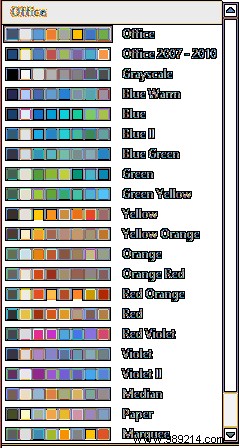
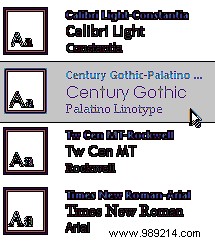
On the Design tab, themes override styles for cohesive looks. Customize colors, fonts, and effects effortlessly.

Select themes, then tweak color schemes:
Or font pairings:
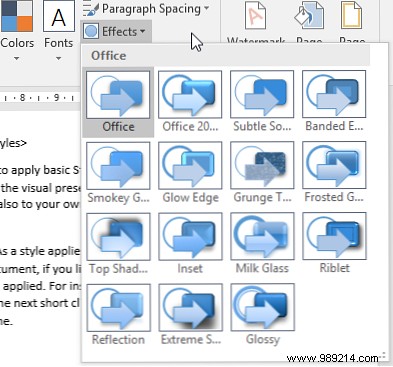
Document Formatting applies 'Style Sets'; Effects update all images (e.g., Glow, Shadows).
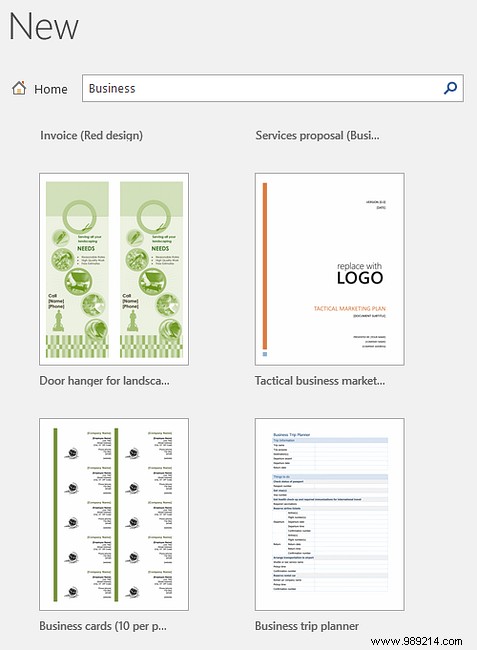
Word's thousands of free templates cover reports, agendas, and more. Open one, inspect layouts (indents, text boxes, styles), then customize using the tools above.
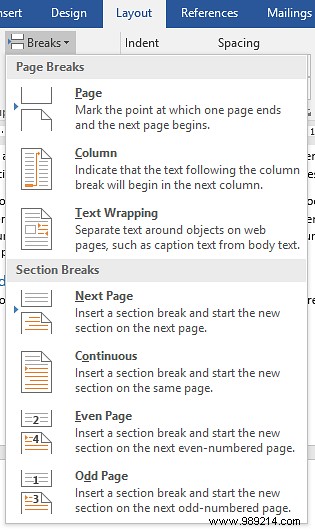
Ideal for varied sections (e.g., unique headers/footers). On Layout tab, choose Breaks: use Continuous to avoid page breaks.
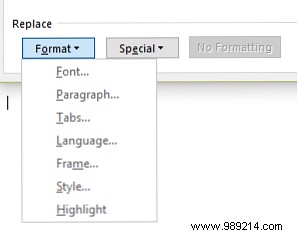
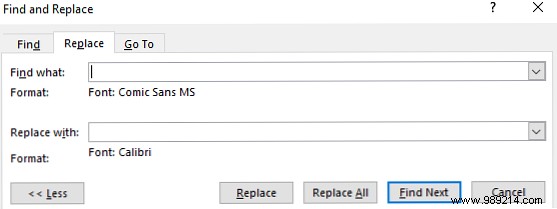
Press CTRL + H, click Format to target styles/fonts—leave fields empty to replace all instances.
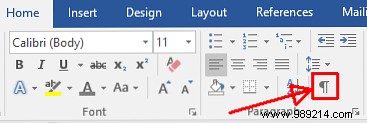
Select ¶ in Paragraph group. Click list item markers (hold CTRL for multiples), then apply styles from Home dropdown.


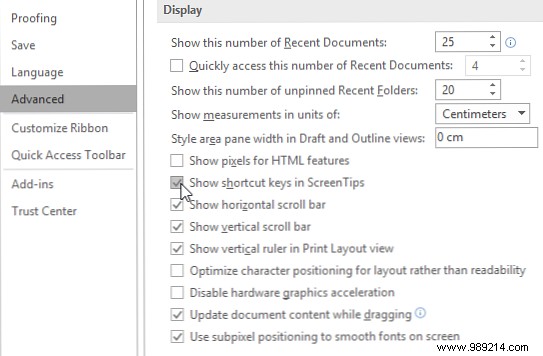
File > Options > Advanced > Display: Check Show shortcut keys in ScreenTips.
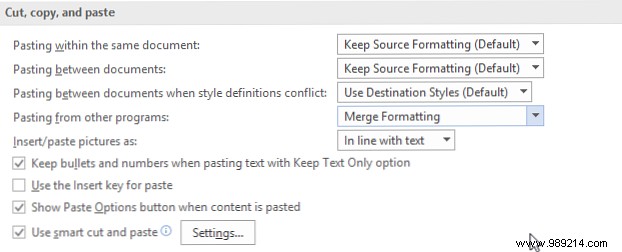
File > Options > Advanced > Cut, copy, and paste: Set rules for same/other docs, enable Paste Options button.
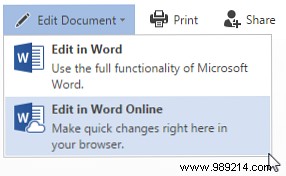
Word Online mirrors desktop basics but skips themes, section breaks, rulers. Great for quick edits with a Microsoft account.
With these proven techniques from real-world use, craft stunning, professional Word docs. Experiment, and share your top tips below!
