As an Excel power user with years of experience streamlining workflows for teams and individuals, I've seen firsthand how custom templates transform chaotic data entry into efficient processes. Whether tracking finances, managing projects, or organizing personal tasks, templates ensure consistency and speed.
While Excel offers pre-built options, crafting your own unlocks precision tailored to your needs—like budgets, schedules, or inventories. We'll walk through creating one from scratch, converting existing sheets, and leveraging free resources.
Custom templates shine for recurring tasks, such as monthly reports or weekly calendars. Even annual spreadsheets benefit, eliminating redundant setup. Pre-made templates work, but editing or building from scratch maximizes utility.
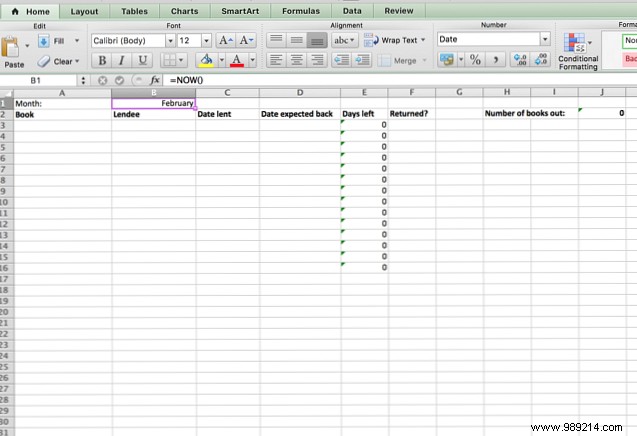
Starting with a blank workbook, we'll build a monthly book loan tracker. Key fields: Month, Book Title, Borrower, Borrow Date, Promised Return Date, Days Overdue, and Current Loans Outstanding.
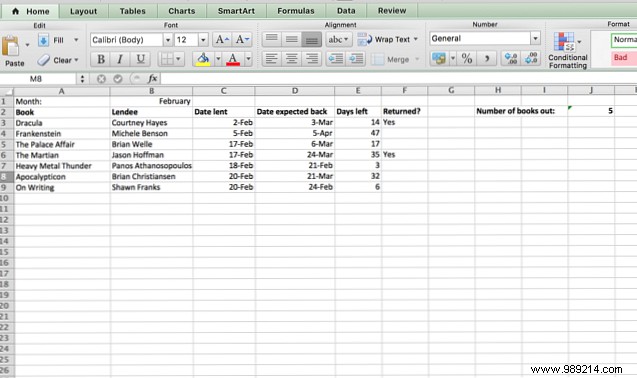
Use formulas for automation—e.g., =TODAY() for current date, =PromisedDate-Today for days overdue, and =COUNTIF for active loans. Test with sample data:
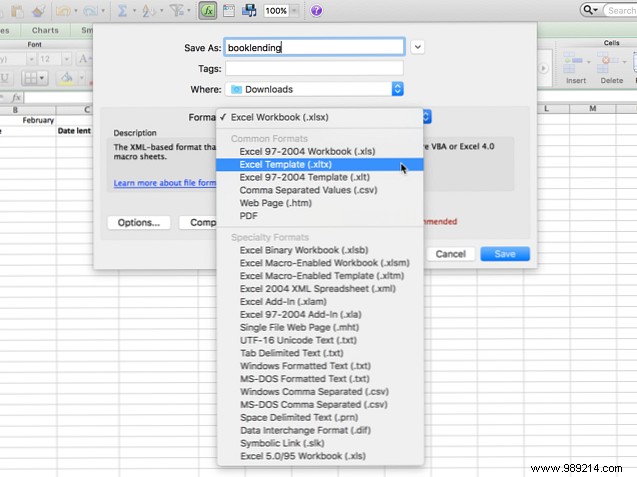
Clear sample data, then go to File > Save As. Choose Excel Template (*.xltx) from the format dropdown. It saves to the My Templates folder by default.
To use: File > New > My Templates. Select yours for a fresh copy with headers and formulas intact.
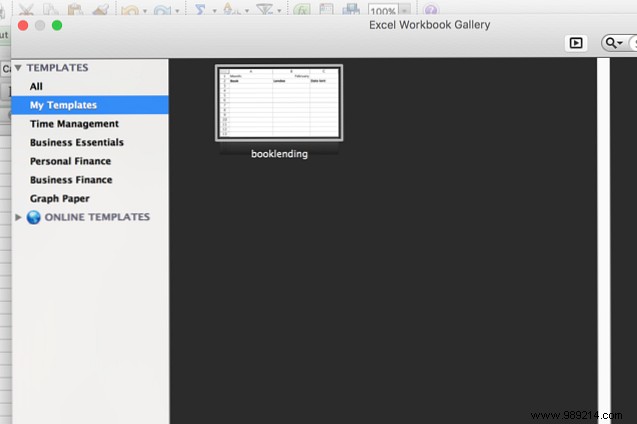
(Steps may vary slightly by Excel version, but the process is intuitive.)
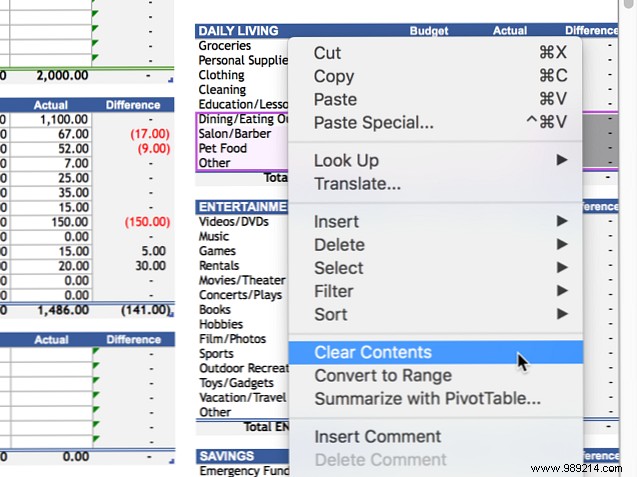
For downloaded sheets, delete unneeded data, adjust as needed, and save as .xltx. Example: Customize a budget template by removing mortgage rows (verify formulas remain intact).
Start with free sources:
Microsoft's templates appear on File > New, or search at templates.office.com.
Custom templates save hours weekly. What's your favorite use case? Share in the comments to help others boost efficiency!
