It's frustrating when Microsoft Word flags perfectly valid words—like contractions or proper names—as typos in important documents. Contractions such as "I'm," "wasn't," or "don't" often get underlined, as do unique terms like your hometown or a favorite athlete's name. The good news? These issues are easy to fix with a few simple adjustments. As a long-time Word user and productivity expert, I've helped countless professionals streamline their editing workflow. Here's how.
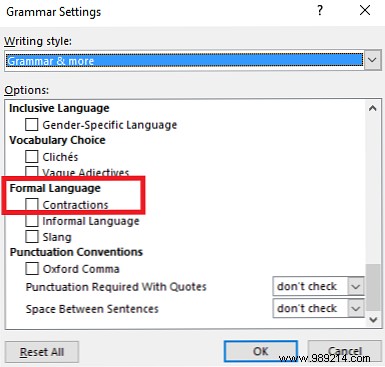
Follow these straightforward steps to disable contraction checking:
Word offers multiple ways to train its dictionary with your personal terms. Here's how:
The quickest method: Type the word, right-click the underlined error, and select Add to Dictionary.
During a full document spell check, click Add to Dictionary when prompted.
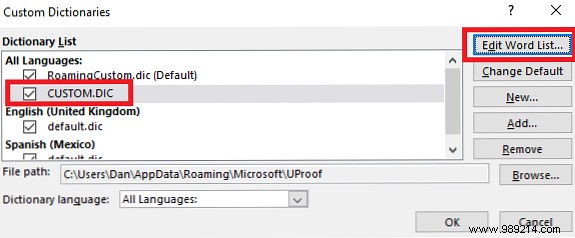
For manual entry: Go to File > Options > Proofing > Custom Dictionaries. Select CUSTOM.DIC and click Edit Word List. Enter the word at the top, then click Add.
Do you maintain a large custom dictionary in Word? Share your tips in the comments below.
