Encountering a mysterious blank page in your Microsoft Word document? It's a common frustration, often caused by hidden formatting elements. As a Word power user with years of troubleshooting experience, I've seen this issue trip up countless professionals. The key is pinpointing the culprit—here are the four most frequent causes and reliable solutions.
Blank pages that appear only during printing (but not on screen) usually stem from printer settings. Check your printer preferences under the Page tab for advanced options that might add extra pages.
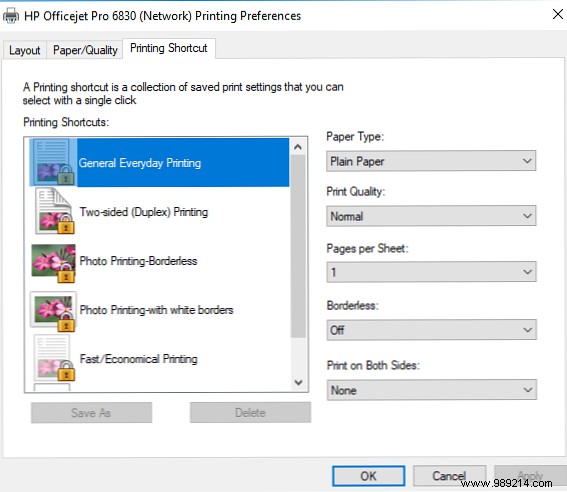
Tip: For detailed printer setup on Windows 10, see our guide: How to Set Up Your Printer in Windows 10.
Stray empty paragraphs can force unwanted pages. Reveal them by pressing Ctrl + Shift + 8 (¶ marks)—a handy Office feature for revealing hidden formatting. Scroll through, select any unnecessary ¶ icons, and hit Delete.
Explore more: 10 Little-Known Microsoft Office Features You Should Know.
Accidental manual page breaks often create mid-document blanks. With ¶ marks visible, look for the page break line (as shown below). Place your cursor at its start and press Delete.

Section breaks (Next Page, Odd Page, Even Page) divide documents for custom formatting but can add blanks. Spot them via ¶ marks, position cursor before the break, and delete.

Caution: Deleting may alter formatting. For blanks without losing styles, switch to a Continuous break instead.
These steps resolve most blank page issues in Word. Which fix worked for you? Share your tips in the comments below—we're all ears from fellow Word users.
