As a seasoned Excel expert with years of experience in data visualization and financial reporting, I've relied on conditional formatting and precise cell styles to create professional spreadsheets. While conditional formatting automatically highlights data based on values, Excel also offers subtle yet powerful underline variations—perfect for accounting tasks. These 'hidden' options go beyond basic single and double underlines.
These underline types are tucked away in the Font group on the Ribbon. Apply them to selected cells, rows, or columns for polished, trustworthy financial statements.
Select the cells you want to format.
Navigate to: Home > Font Group (click the down arrow) > Format Cells > Underline. The dropdown reveals five options:
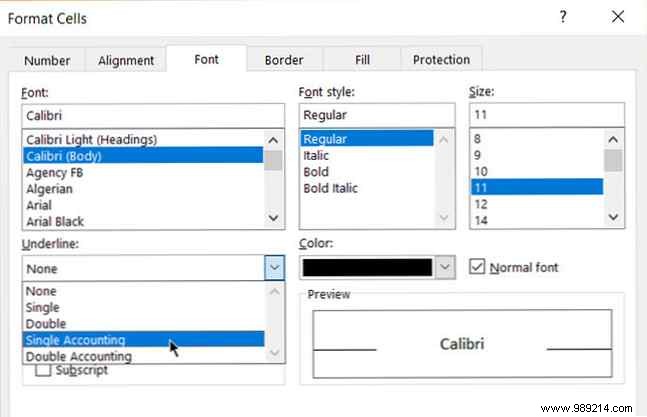
Accounting underlines (Single and Double) follow established practices: single for subtotals, double for final totals. They ensure alignment in financial statements.
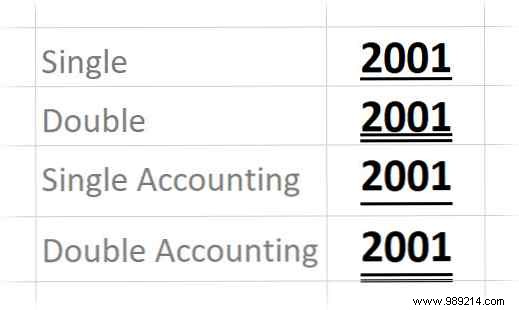
As shown above, the key difference is the greater vertical gap in accounting styles, providing cleaner number separation.
