As an Excel power user with years of experience streamlining workflows, I know comparing spreadsheets can be tedious. Here are two reliable methods to spot differences quickly and accurately.
Whether you're reviewing versions for changes or auditing data, these techniques save time. For more efficiency tips, check out 14 Tips to Save Time in Microsoft Excel.
Excel's built-in View Side by Side feature displays two workbooks or sheets simultaneously, making visual comparisons straightforward.
To compare sheets within the same workbook, first create a new window: View > Window > New Window.
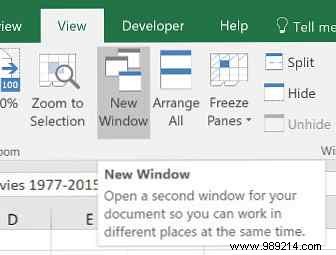
This opens a duplicate instance without altering your original file.
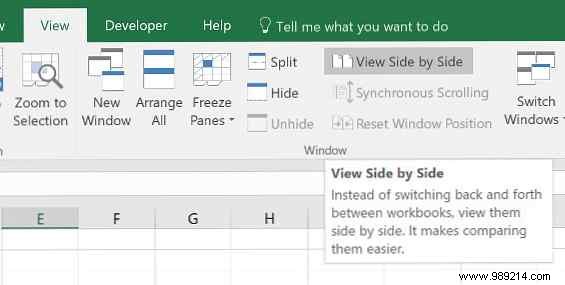
Next, select View Side by Side from the View tab's Window group.
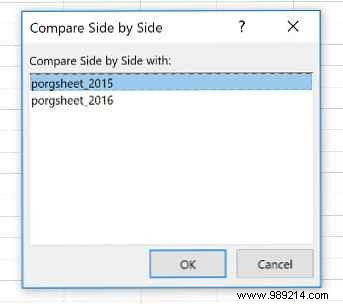
Choose your open workbooks from the list and click OK.
Both sheets now appear side by side.
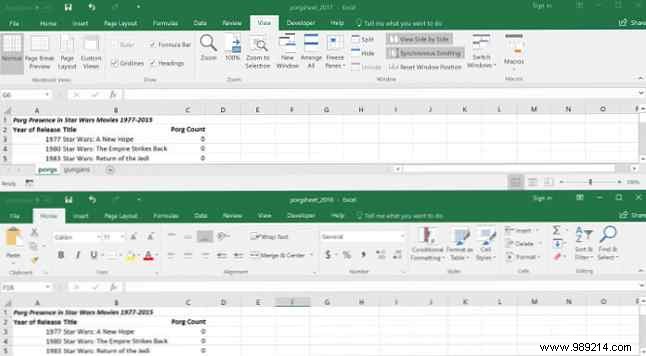
Use the View Side by Side button to toggle between vertical and horizontal layouts.
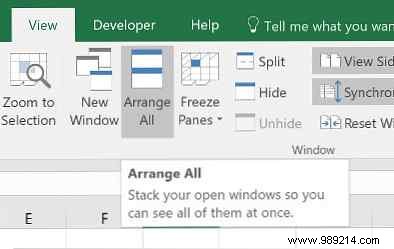
Enable Synchronous Scrolling for aligned navigation—ideal for large sheets. See How to Split a Huge CSV Excel Spreadsheet into Separate Files for handling big data.
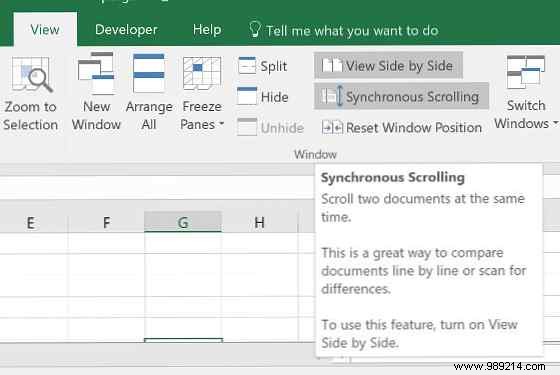
If alignment shifts, click Reset Window Position.
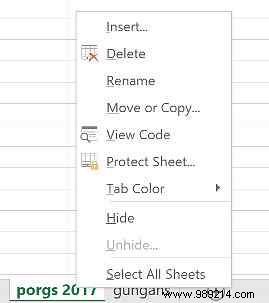
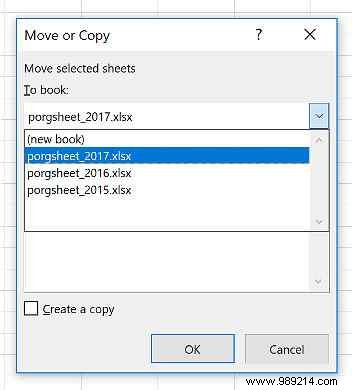
For automated highlighting of differences, use conditional formatting. First, combine sheets into one workbook: Right-click a sheet tab, select Move or Copy, and choose the target workbook.
Select the range to compare (e.g., Ctrl + Shift + End from top-left cell). Go to Home > Styles > Conditional Formatting > New Rule.
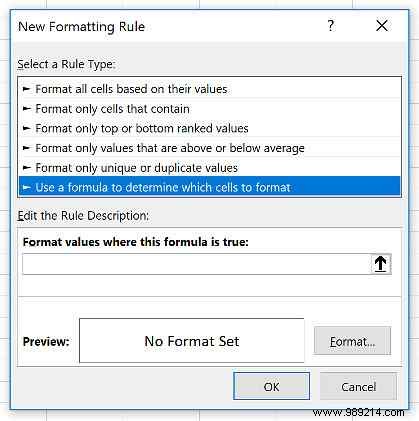
Choose Use a formula to determine which cells to format and enter: =A1<>Sheet2!A1 (replace Sheet2 with your sheet name).
This flags cells with mismatches. Set a format like red fill and click OK.
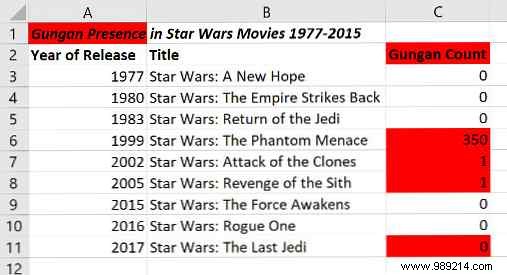
Differences now stand out instantly. Learn more in Automatically Formatting Data in Excel Spreadsheets with Conditional Formatting.
These methods leverage Excel's strengths for precision without manual errors. For beginner organization tips, see 3 Beginner Tips for Managing Excel Worksheets.
Excel excels at repetitive tasks—combine it with shortcuts like those in 3 Essential Excel Shortcuts to Save Time or advanced formulas from 3 Crazy Excel Formulas That Do Amazing Things.
Share your Excel comparison tips or questions in the comments!
