As a seasoned Excel expert with years of experience helping professionals streamline their workflows, I've seen how mastering column management can transform overwhelming spreadsheets into organized powerhouses. Whether you're inserting columns mid-dataset, hiding distractions, or fine-tuning widths, these proven techniques will save you time and frustration.
To add a new column between existing ones, select the column header to the right of your desired insertion point. Right-click and choose Insert. Excel will shift the selected column and all to its right over by one.
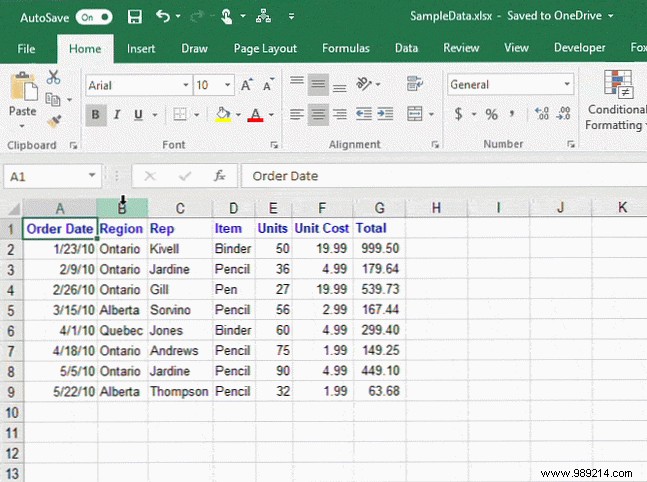
Working with dense datasets? Hide irrelevant columns to focus on key data. Select the column(s) you want to hide (hold Shift or Ctrl for multiples), right-click, and select Hide. A thin double line appears where the column was hidden—notice how headers skip (e.g., from A to C).
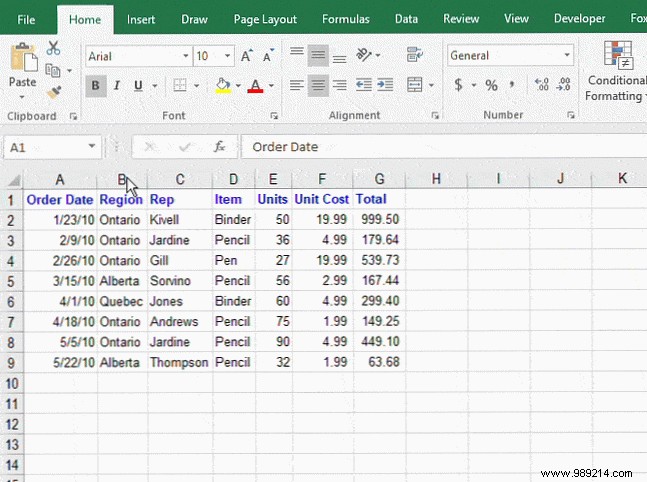
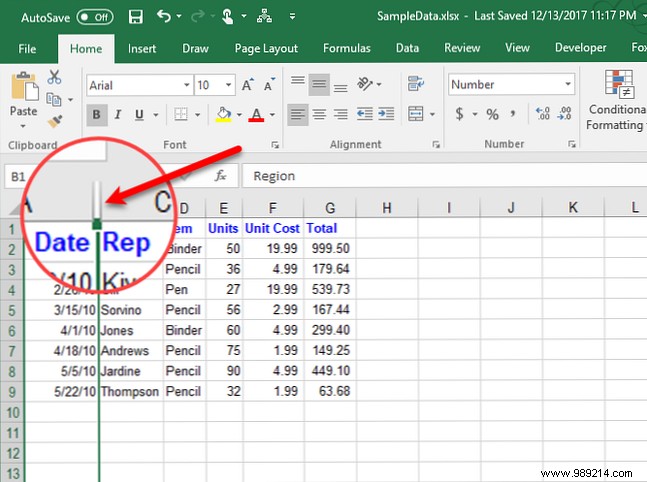
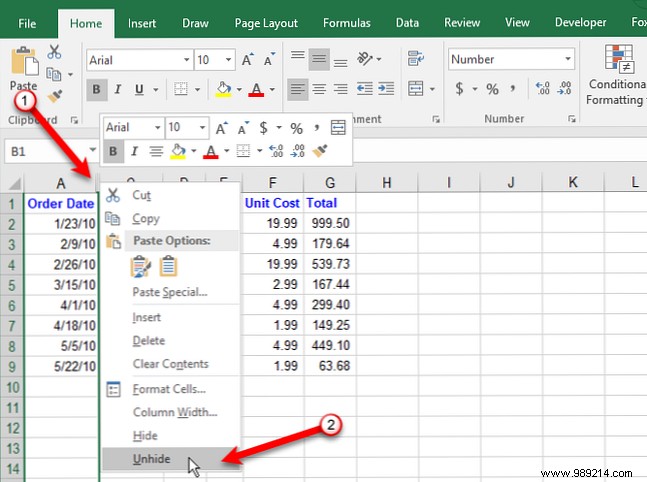
To unhide, click the double line between the adjacent headers, right-click, and select Unhide.
Reposition columns via drag-and-drop or clipboard commands. Note: Drag-and-drop overwrites destination content unless you insert a new column first.
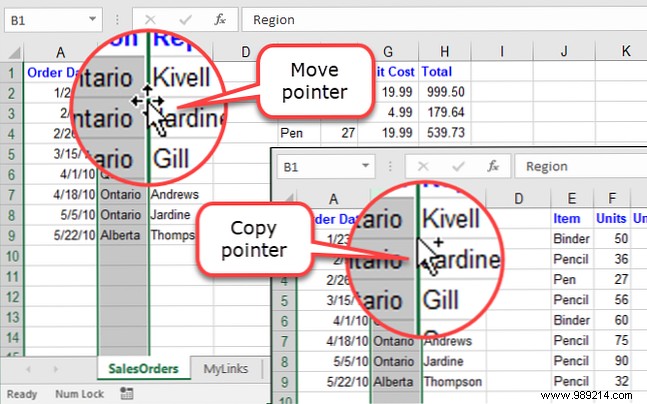
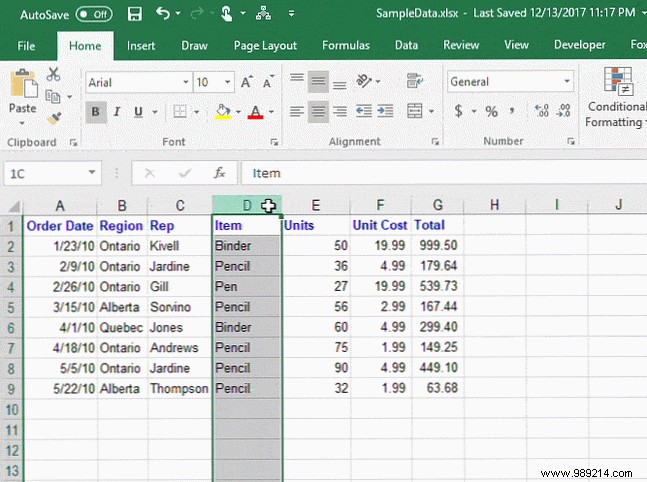
Select the column, hover over its border until the cursor shows a four-way arrow, then drag to the new spot. For copying, hold Ctrl (cursor shows a plus sign) while dragging.
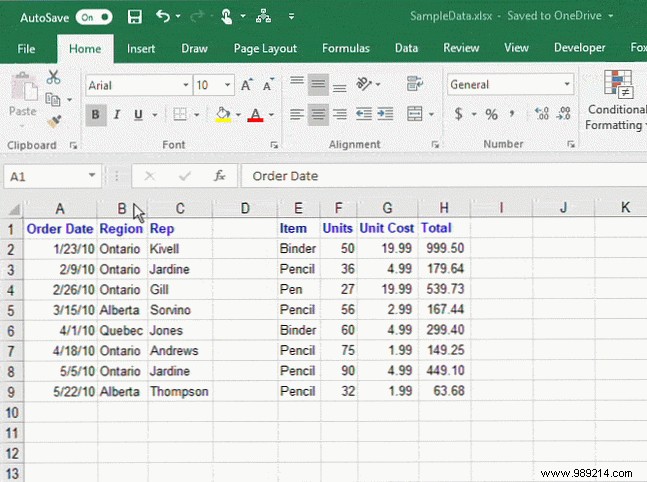
Select the column, then use Cut or Copy from the Home tab's Clipboard group (or right-click). Select the destination column to the right, right-click, and choose Insert Cut Cells or Insert Copied Cells.
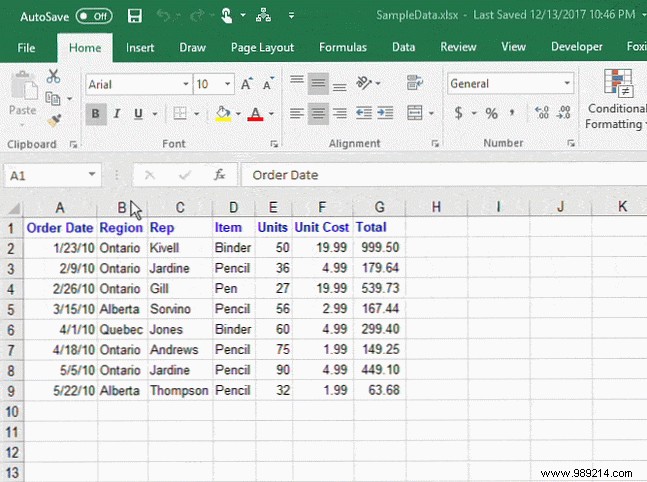
Excel's default column width is 8.43 characters, but it varies by font. Hover over a header's right edge to preview width in characters and pixels.
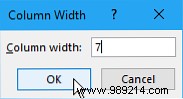
Select the column(s), right-click, and choose Column Width, or go to Home > Cells > Format > Column Width. Enter a value and click OK—experiment as needed.
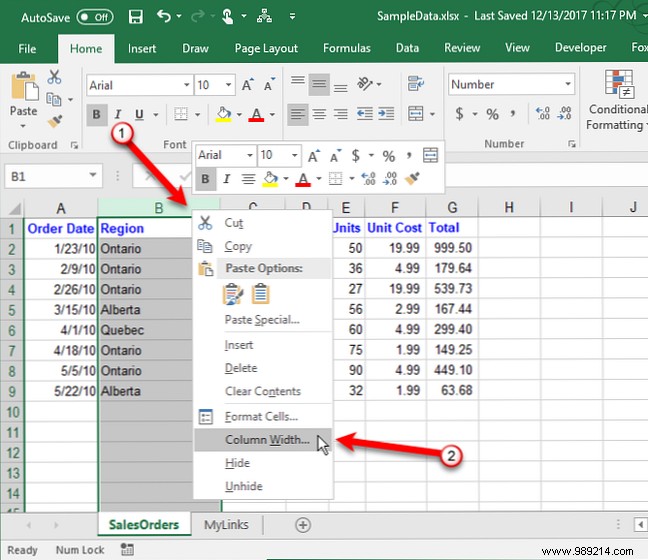
Drag the right border of the header for visual adjustments. Select multiple columns first to resize them together, or click Select All (top-left corner) for the whole sheet.
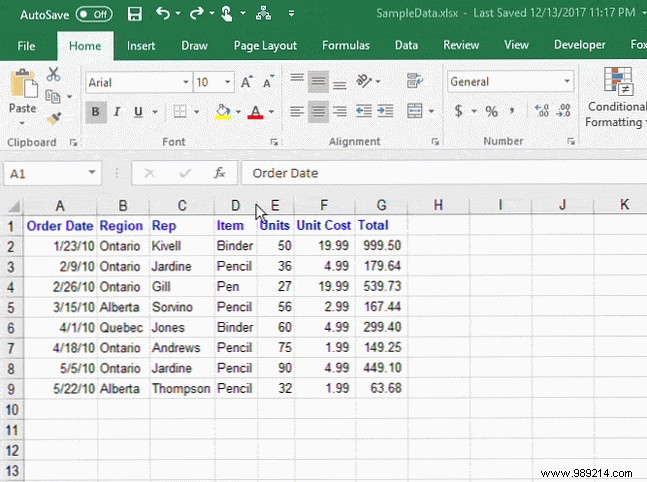
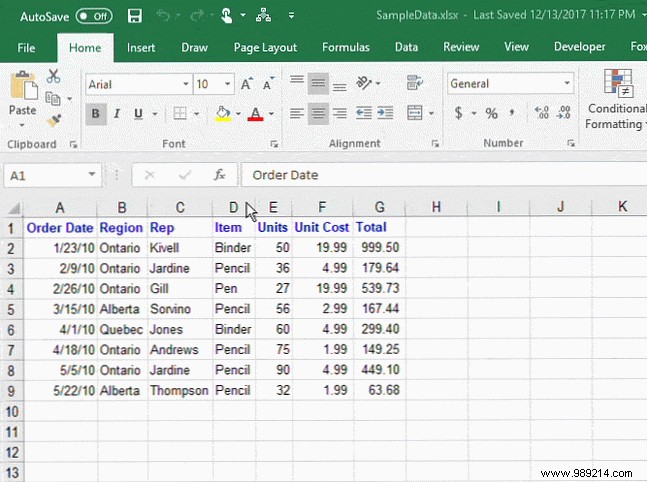
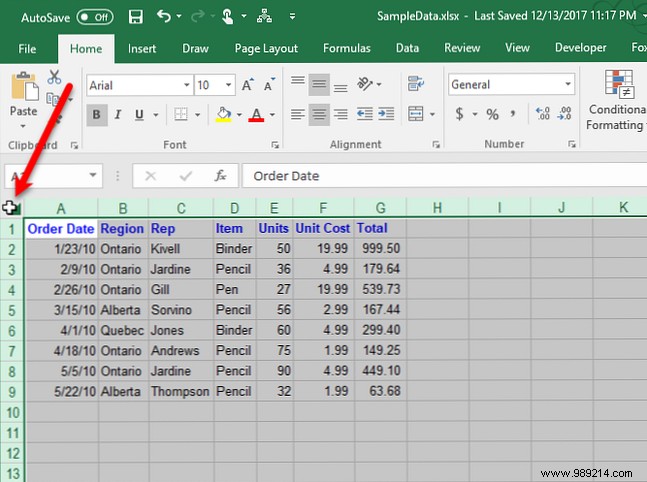
Double-click a column's right border to auto-size one or multiples. Or use Home > Cells > Format > AutoFit Column Width. For all columns, Select All and double-click any border.
With these column management essentials under your belt, organize data effortlessly. Explore further with custom views, templates, and advanced functions to elevate your Excel game.
