Excel users often struggle to extract specific data from cells mixing numbers and text. Drawing from questions in my previous article, How to Extract Numbers or Text from Excel Cells, this guide tackles three real-world extraction problems with proven formulas. These solutions demonstrate practical expertise gained from years of helping users master Excel functions.
We'll break down each formula step by step, so you can apply them confidently to your spreadsheets.
Reader Adrie needed to pull numbers of varying lengths from strings like "COIL112X2.5", removing leading text and the "X" plus trailing numbers.
Here's the formula:
=VALUE(LEFT(RIGHT(A1,(LEN(A1)-4)),FIND("X",A1)-5))Start with FIND("X",A1), which locates the "X" (position 8 in "COIL112X2.5"). LEN(A1)-4 combined with RIGHT(A1,...) strips the first four characters ("COIL"), yielding "112X2.5". Then LEFT(..., FIND("X",A1)-5) grabs the first three characters ("112"). Finally, VALUE converts it to a number.
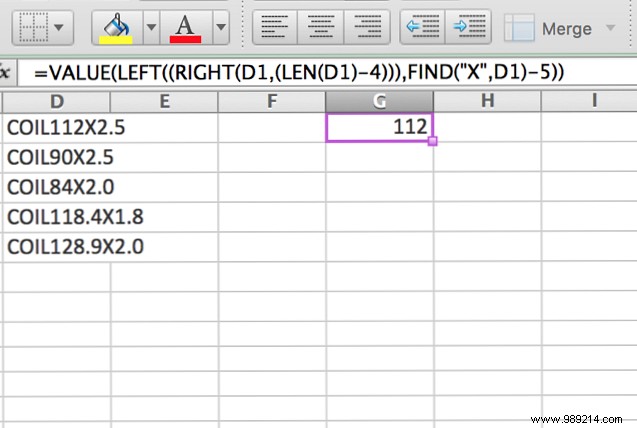
For simplified view: =LEFT("112X2.5", (8-5)) returns "112".
Reader Yadhu Nandan wanted to extract fixed-position numbers from long mixed strings. Reader Tim K SW shared this effective approach using MID:
MID(cell, start_position, length) extracts a substring. For example, MID(A1,10,4) grabs four characters from position 10.
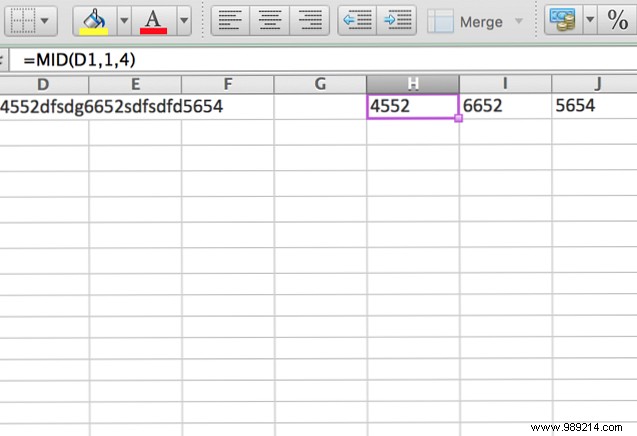
Apply separate MID formulas in columns to isolate each number block. This works for consistent formats; variable lengths require more advanced methods.
Reader Daryl's challenge: parse numbers from messy strings with spaces, up to a "%" if present. Reddit user UnretiredGymnast provided this powerful formula:
=SUMPRODUCT(MID(0&LEFT(A1,IFERROR(SEARCH("%",A1)-4,LEN(A1))),LARGE(INDEX(NUMBER(-LEFT(LEFT(A1,IFERROR(SEARCH("%",A1)-4,LEN(A1))),ROW($1:$99),1))*ROW($1:$99),0),ROW($1:$99))+1,1)*10^ROW($1:$99)/10)Key functions:
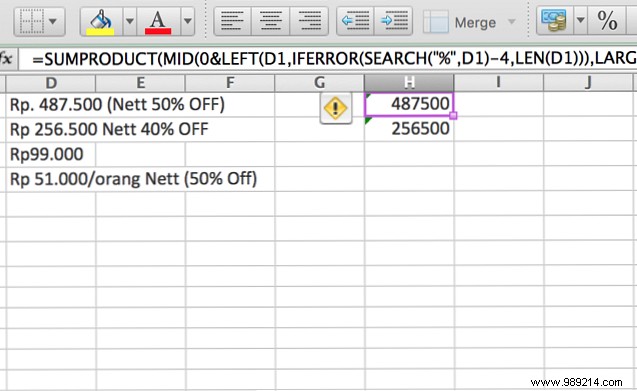
Test it in a sheet to see it in action—experimenting builds true mastery.
Pro tip: Prevent issues by importing clean data. See How to Import Data into Excel Cleanly for best practices.
Excel mastery comes from dissecting problems: start simple, layer functions, and test iteratively. Elegant or complex, if it works reliably, it's a win.
Leverage communities too—talented users often share game-changing insights.
Got tips for tough extractions or alternative solutions? Share in the comments!
