Locating data in an Excel spreadsheet is usually simple—scan rows and columns or hit Ctrl+F. But with massive files, like oversized CSVs, you need powerful tools for speed. How to Split a Huge Excel CSV Spreadsheet into Separate Files Regardless of size, these four functions from my years of Excel expertise will transform your workflow.
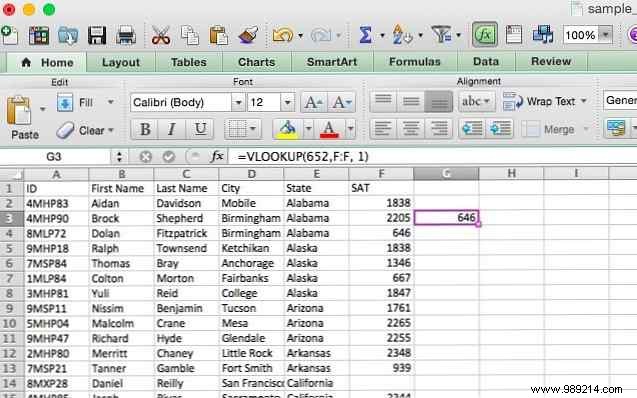
VLOOKUP lets you search a column for a value and retrieve data from the same row in another column. Ideal for employee lookups by ID or phone numbers by name. Syntax:
=VLOOKUP([lookup_value], [table_array], [col_index_num], [range_lookup])
[lookup_value] is your known value (e.g., city name). [table_array] is the search range—ensure the first column holds the lookup value. [col_index_num] identifies the return column. [range_lookup] is optional: 1 (or omitted) for approximate match (closest lower value); 0 for exact.
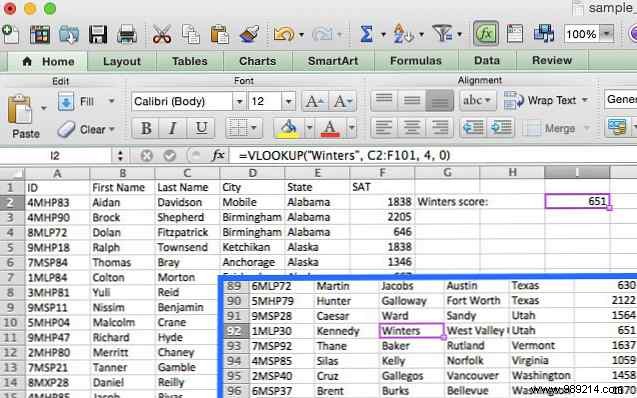
For example, with data on IDs, names, cities, states, and SAT scores, to find Kennedy Winters' score:
=VLOOKUP("Winters", C2:F101, 4, 0)This returns 651 from row 92. Far faster than scrolling!
Great for taxes too. 5 Excel Formulas You Need for Tax Time
Lookup column must be first in range. Returns only the first match (e.g., first 'Georgia' student).
HLOOKUP searches rows instead of columns, perfect for time-series data or huge sheets. Syntax:
=HLOOKUP([lookup_value], [table_array], [row_index_num], [range_lookup])
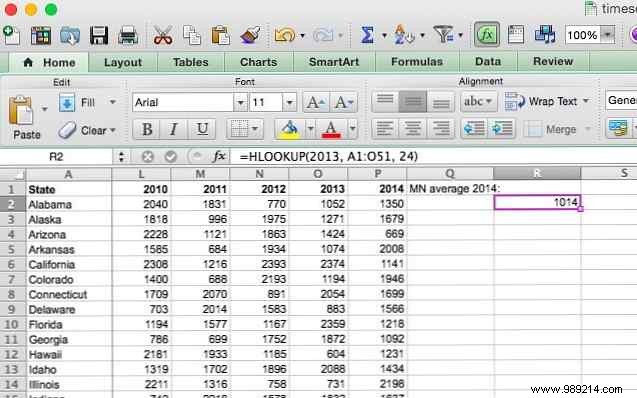
Example: State averages by year. Minnesota's 2013 SAT score:
=HLOOKUP(2013, A1:P51, 24)
Returns 1014. (Row 24 = Minnesota; no quotes for numbers.)
Lookup in first row. Single value only.
Used together, they outperform VLOOKUP—flexible, bidirectional searches. Syntax:
=INDEX([array], [row_number], [column_number])
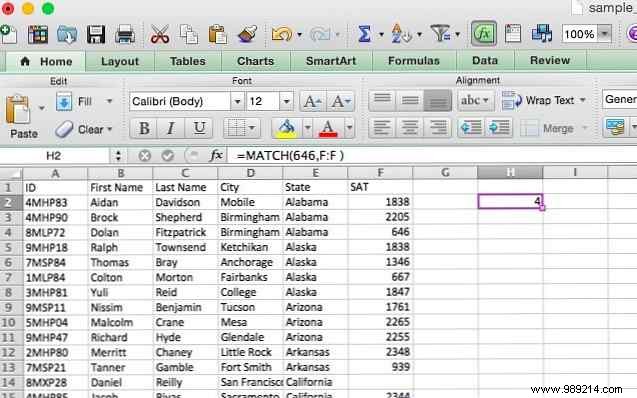
=MATCH([lookup_value], [lookup_array], [match_type])
MATCH returns position (e.g., MATCH(646, F:F, 0) = 4).
INDEX returns value by position (e.g., INDEX(C:C, 6) = "Anchor").
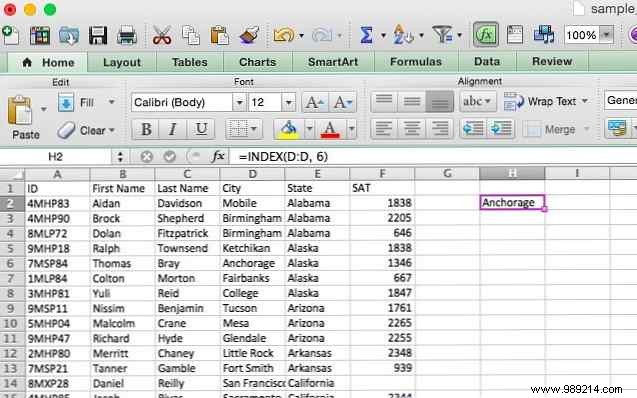
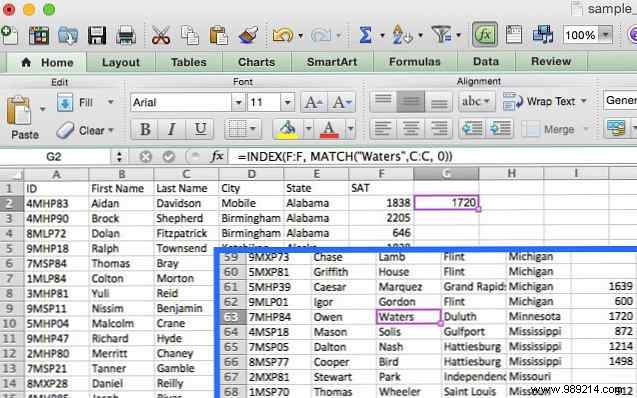
Combined: Owen Waters' score:
=INDEX(F:F, MATCH("Waters", C:C, 0))Returns 1720. Scales to databases. Excel vs. Access: Spreadsheet or Database?
Excel's power runs deep. 3 Crazy Excel Formulas That Do Amazing Things These four are game-changers for large sheets. For more on INDEX, see Excel Hero's 'Index of Imposition.'
How do you use these in large spreadsheets? Share your tips below!
