Need to export your Outlook contacts? Whether switching email providers, building an Excel spreadsheet, or populating an Access database, the process is straightforward and reliable. As Microsoft Office specialists with years of experience guiding users through data migrations, we've streamlined these steps for you.
We'll cover exporting from Outlook desktop and importing into key platforms like Excel, Access, Gmail, Yahoo Mail, Outlook.com, and even macOS Contacts. This ensures your valuable network stays intact—no more nightmares over lost contacts.
Start by going to File > Open & Export > Import/Export. In the wizard, select Export to a file. Choose Comma Separated Values (.csv) for versatility—it's ideal for importing into spreadsheets, databases, or other email services. (Use .pst for Outlook backups only.)
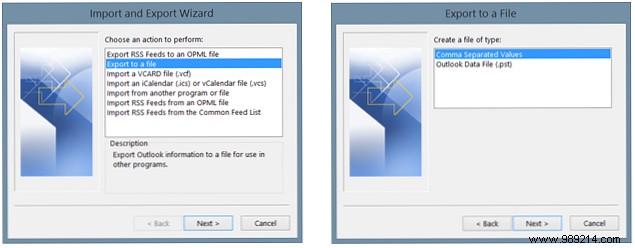
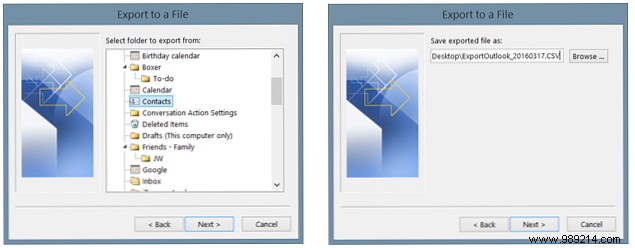
Next, select the Contacts folder and click Next. Browse to your desired save location, rename if needed, and proceed.
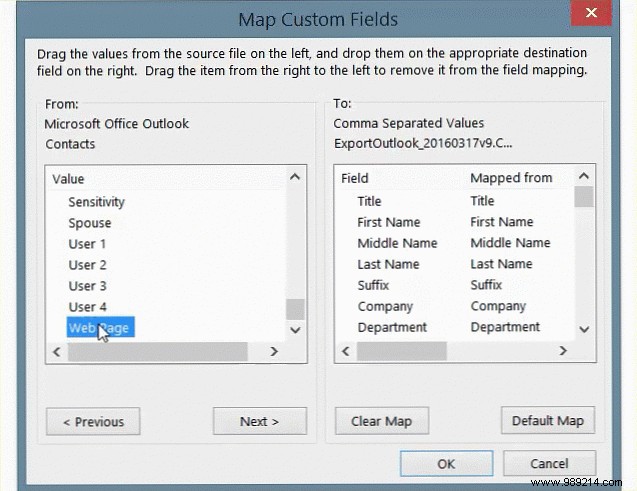
Optionally, click Map Custom Fields to refine data: drag unused fields left to remove them or add others like 'Web Page' by dragging right. Preview with Previous/Next, then Finish.
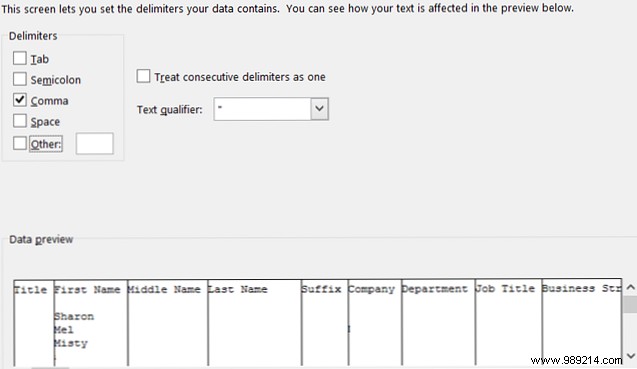
Open Excel, go to Data > From Text/CSV, select your .csv file, and click Load. The Text Import Wizard auto-detects settings—adjust delimiters, headers, or column formats as needed, then Finish for a clean import.
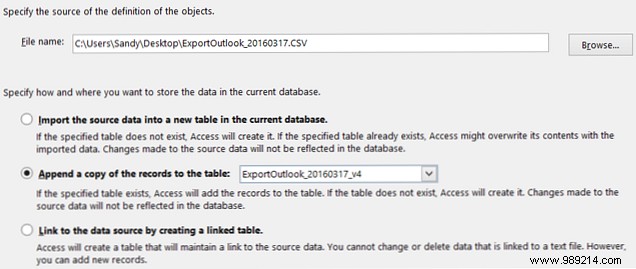
In Access, navigate to External Data > New Data Source > From File > Text File. Browse to your .csv, choose import options (new table, append, or link), set delimiters, primary key, and Finish.
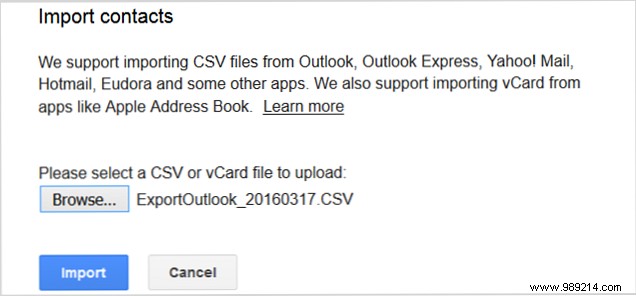
Log into Gmail, click Gmail > Contacts (or google.com/contacts). Select Import under More, choose your .csv, and confirm.
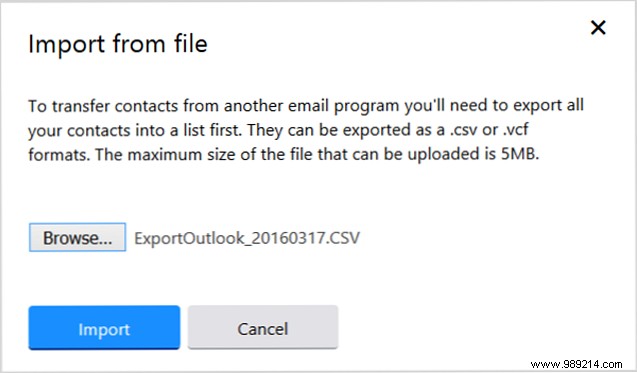
In Yahoo Mail, find the Contacts import option on the main screen. Select Upload file, browse to your .csv, and Import.
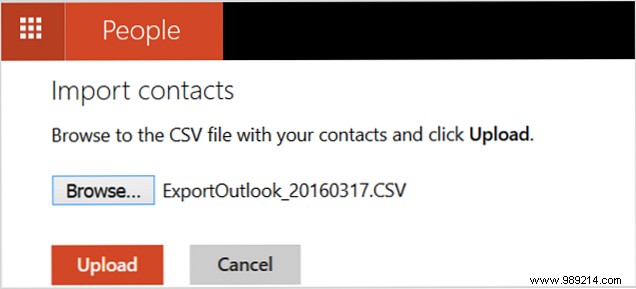
Sign in to Outlook.com, click the app launcher > People. Under Import contacts, select Start importing > Other Excel or Outlook file, upload your .csv.
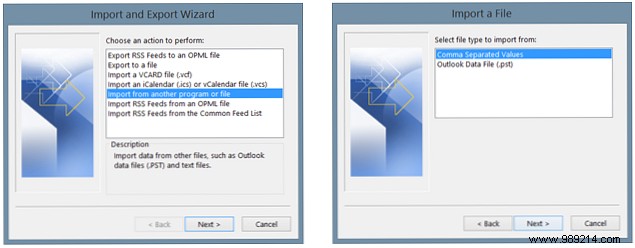
Mirror the export: File > Open & Export > Import/Export > Import from another program or file > Comma Separated Values. Select file, handle duplicates, choose Contacts, map fields, and Finish.
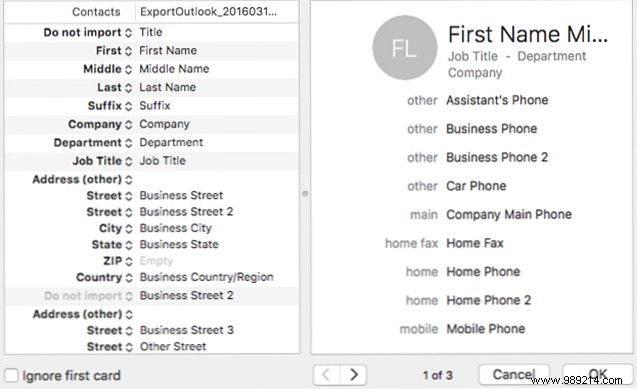
Open Contacts app, go File > Import, select your .csv. Adjust field mappings (e.g., match 'Nickname' to 'Name'), resolve duplicates, and Import.
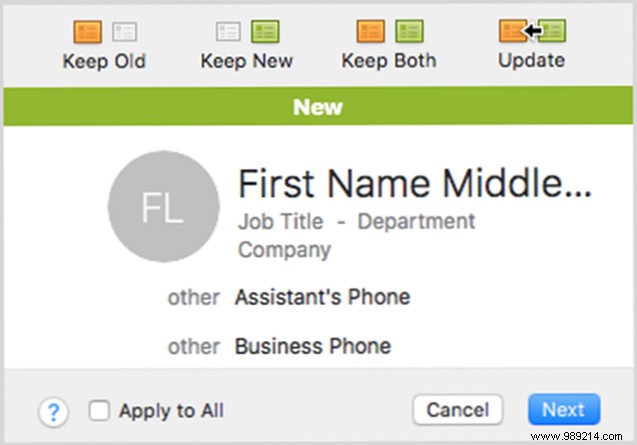
Exporting and importing Outlook contacts is quick and foolproof. Have you run into issues during a migration? Share in the comments—your tips could help others.
